Quick Reference For WIZio-SEN
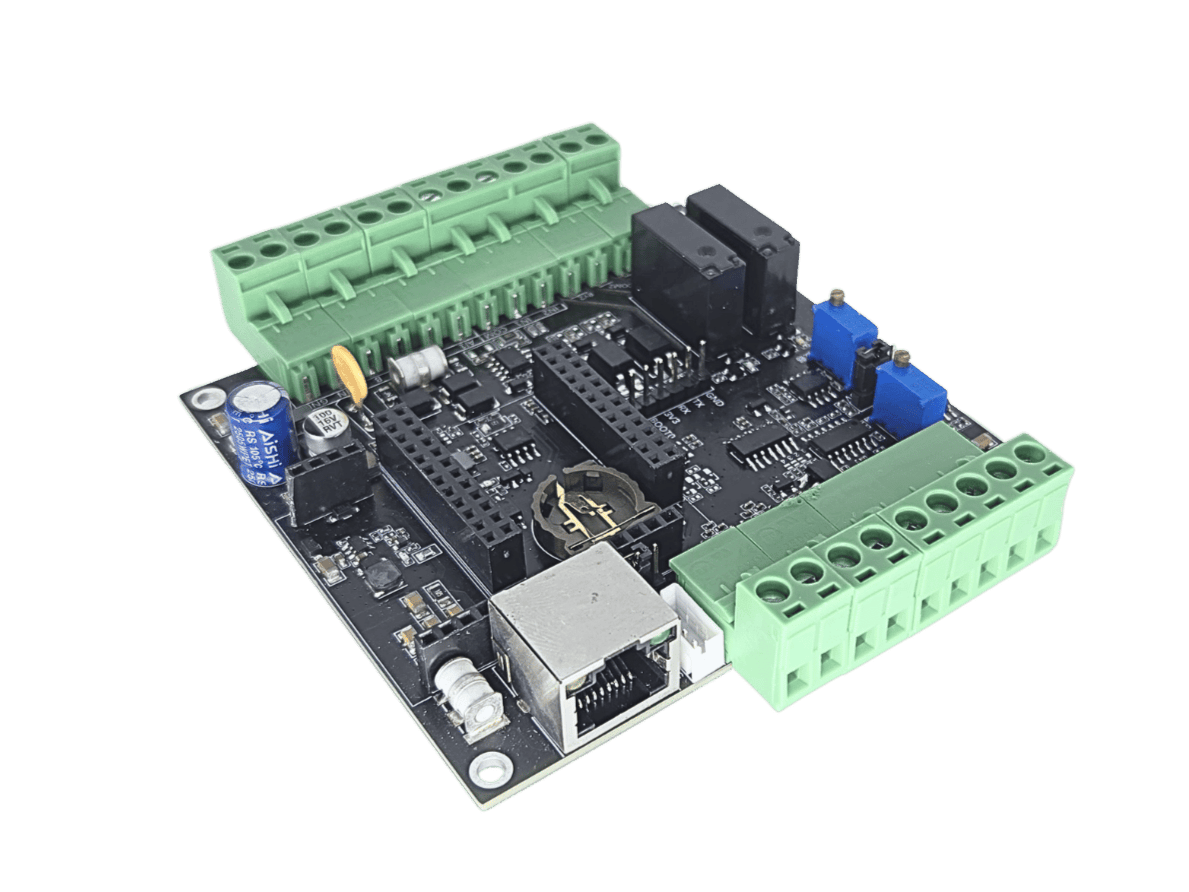
WIZio-SEN is a multifunctional transmitter development board developed by WIZnet’s W55MH32Q chip, specifically designed for industrial field applications. With its flexible power supply options, extensive interface configurations, and reliable control core, it meets diverse industrial automation control requirements.
Purchase link: WIZio-SEN
Download Hex file: WIZio-SEN hex
Firmware Information:
MicroPython version |
V 1.27.0 |
Release date |
2026/09/18 |
Release notes |
First release. |
Pinout
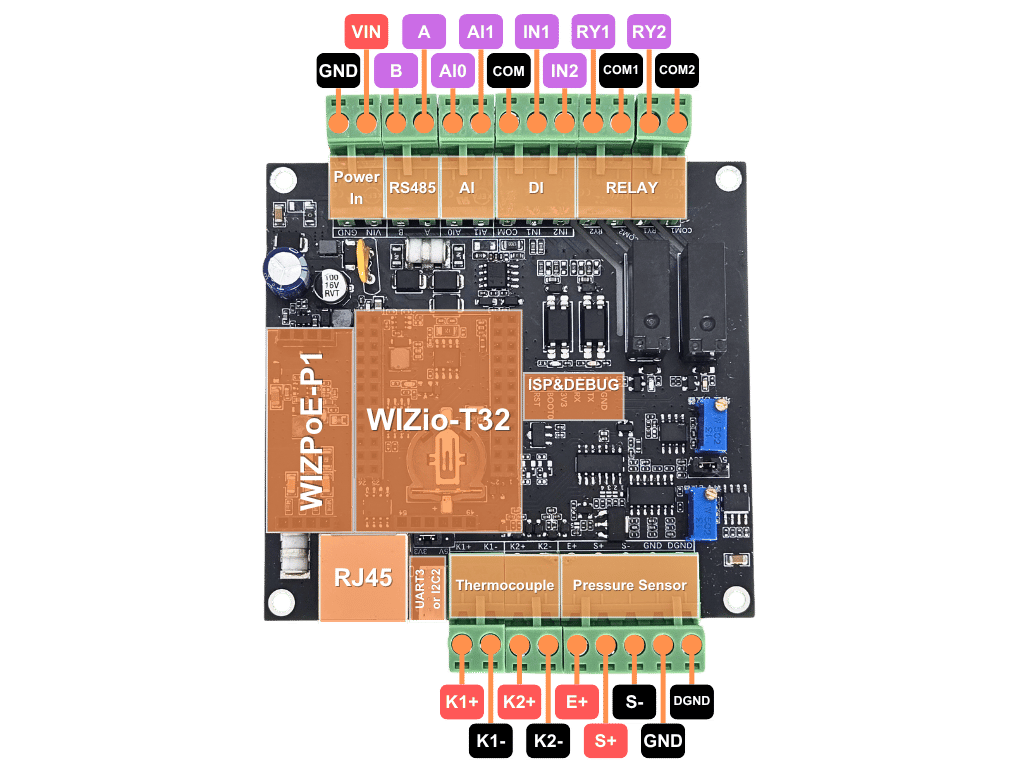
The pinout diagram below shows the available pins on the WIZio-SEN.
Frozen Modules
🧊 Click to expand – full list of frozen modules
Basic Setup
Important
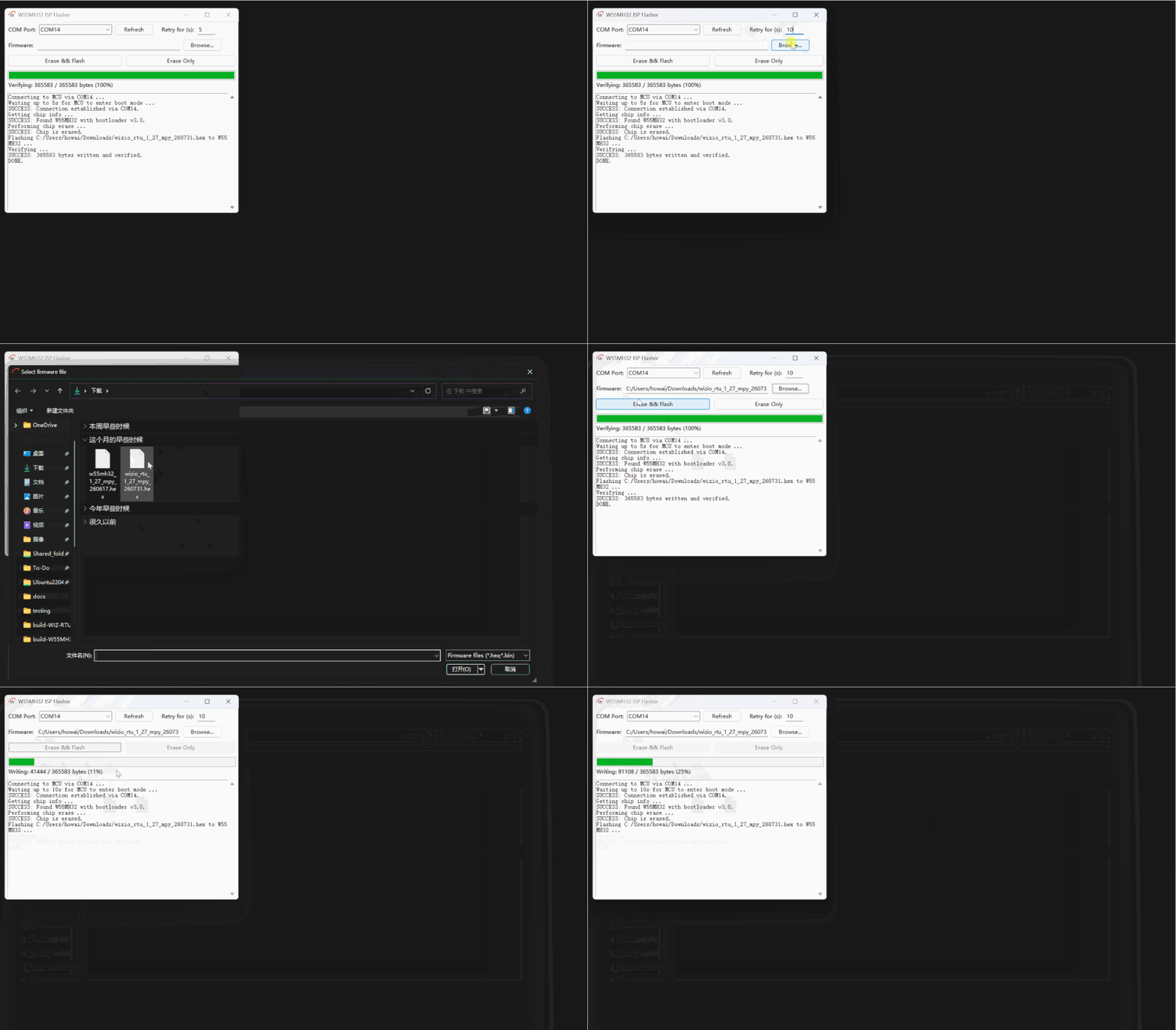
You will need WizISP Tool before using MicroPython on this board.
Connect the ISP & Debug section’s GND, RXD and TXD pins to your PC through a USB-to-TTL adapter.
Unzip and open WizISP.exe.
Select the correct COM port and choose the firmware file you want to flash.
Click Erase && Flash.
To enter boot mode, press and hold the BOOT0 button first, then press the RESET button.
Once flashing is finished, open your preferred MicroPython REPL tool. You should see the MicroPython terminal start successfully. You can verify the firmware by running:
print("hello world!")
HTTP Configuration
Important
Visit WIZio-SEN HTTP Configuration for the source code of this project.
The WIZio-SEN HTTP Configuration Server runs a lightweight web server on the board, allowing users to configure and control the device from a web browser or HTTP client.
Through the web interface, users can configure network settings, control I/O channels, read analog values, send and receive serial data, access EEPROM storage, measure weight and read temprature values.
After cloning the WIZio-SEN HTTP Configuration Server repository to your PC, upload all project files to the device. Once the upload is complete, reset the device to start the HTTP configuration program.
Warning
Sometimes Syntax Error may arise due to bad file writes. If you found this error, just reupload the given file and it should be good to go.
Startup Flow
main.pyenables garbage collection and importshttp_app.py.http_app.pycreates aDeviceobject for hardware access.http_app.pyalso creates aServerobject and registers all HTTP routes.server.run()initializes the WIZnet network interface.The server listens on TCP port
80.For every HTTP request, the server reads the header, reads the body if a
Content-Lengthis present, matches the route, and sends a response.
HTTP Config Table of Contents
Web Page Demonstration
Network Config
DHCP:
Static:
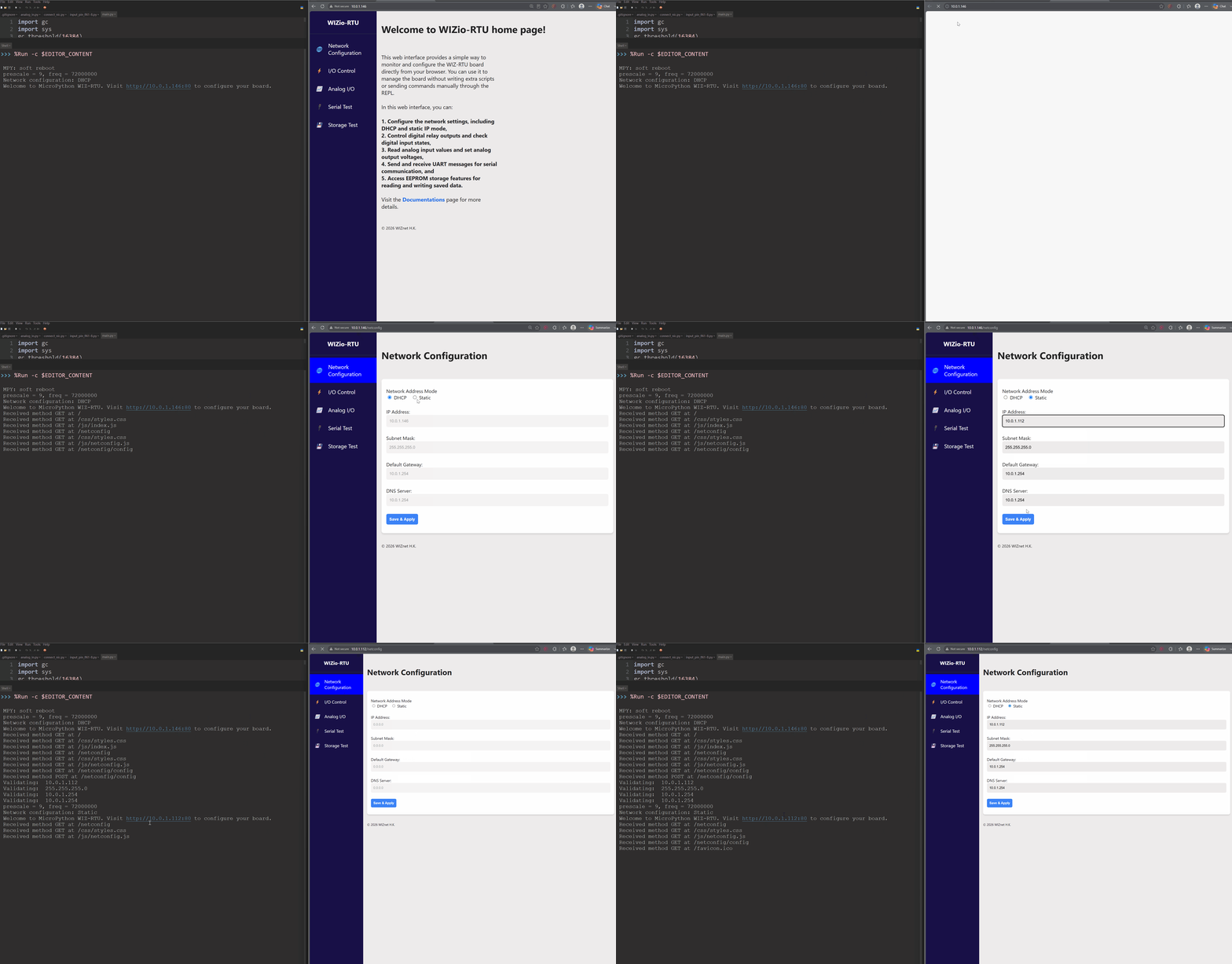
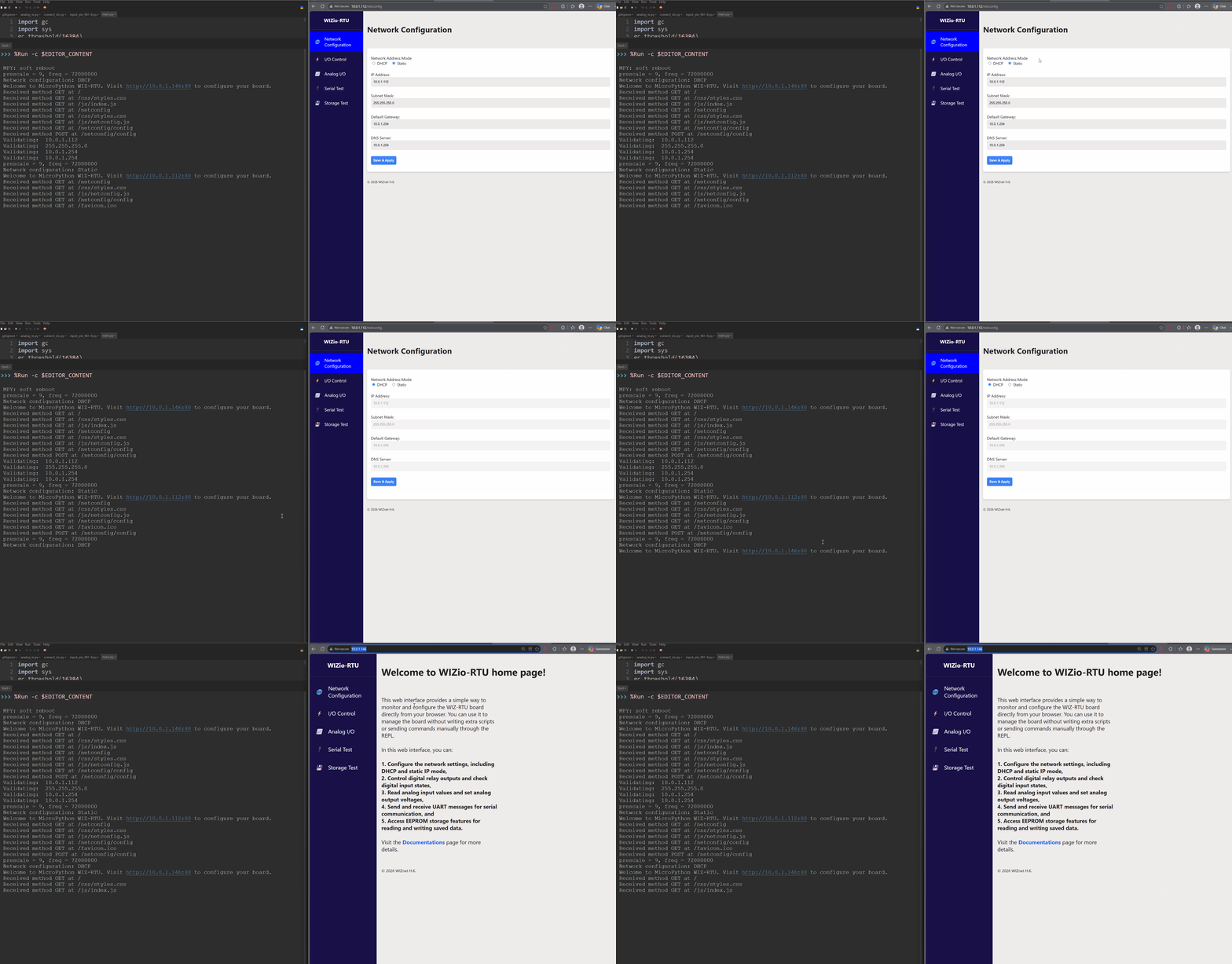
The Network Configuration tab allows users to view and change network details of the WIZio-SEN board.
When accessed, the tab first retrieves the current network settings from the device.
If DHCP mode is selected, the network information cannot be edited manually.
If Static mode is selected, you need to enter the correct network addresses before submitting the configuration.
After submission, the redirect behavior depends on the selected mode:
In DHCP mode, click the URL shown in the MicroPython REPL terminal to open the new web page.
In Static mode, the web page will automatically redirect to the new IP address.
Digital I/O
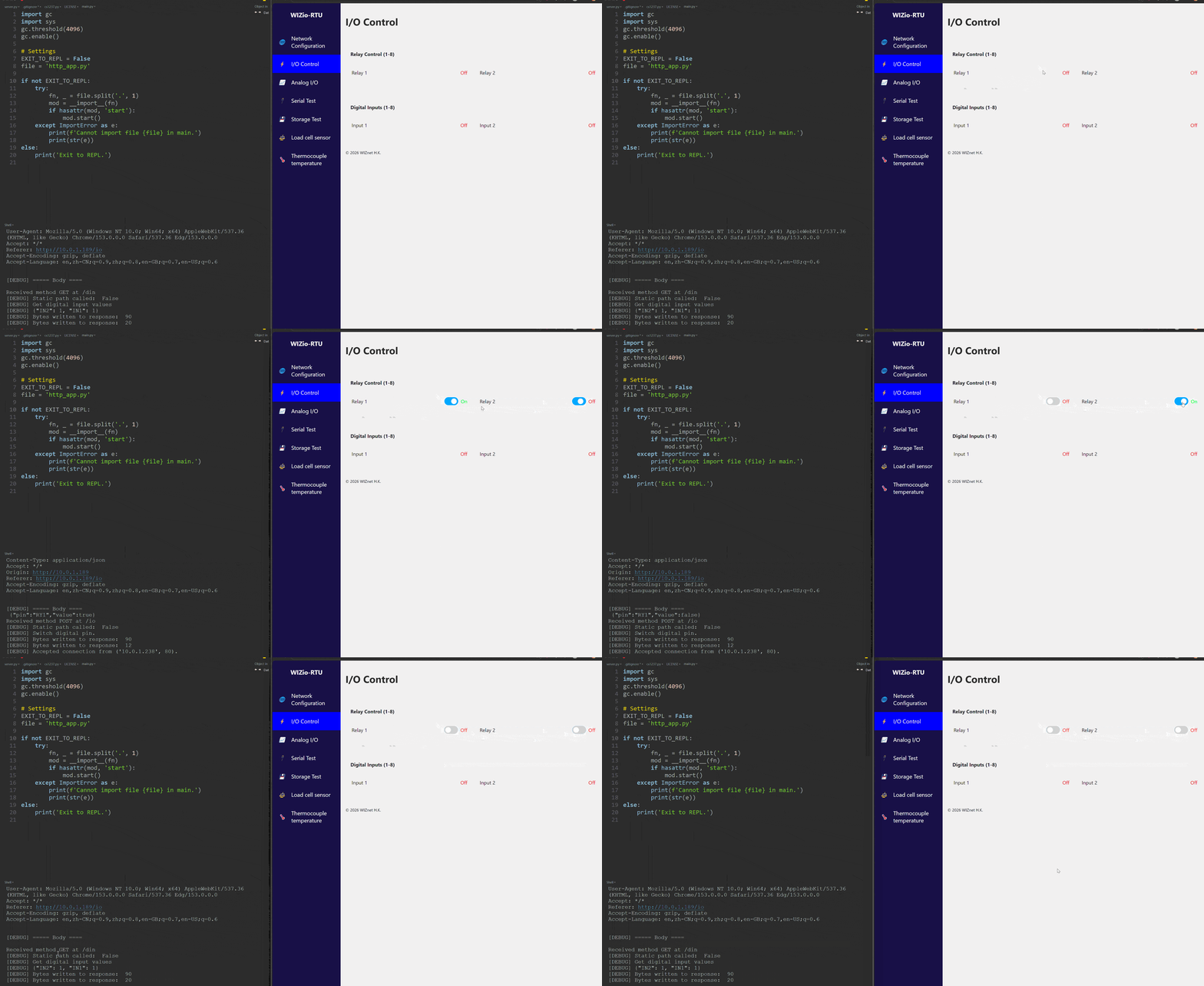
The WIZio-SEN provides two relay outputs (RY1 and RY2) and two digital inputs
(IN1 and IN2). The I/O Control page lets you switch each relay and shows
the current input states. Input states are refreshed by the browser once per
second.
Analog I/O
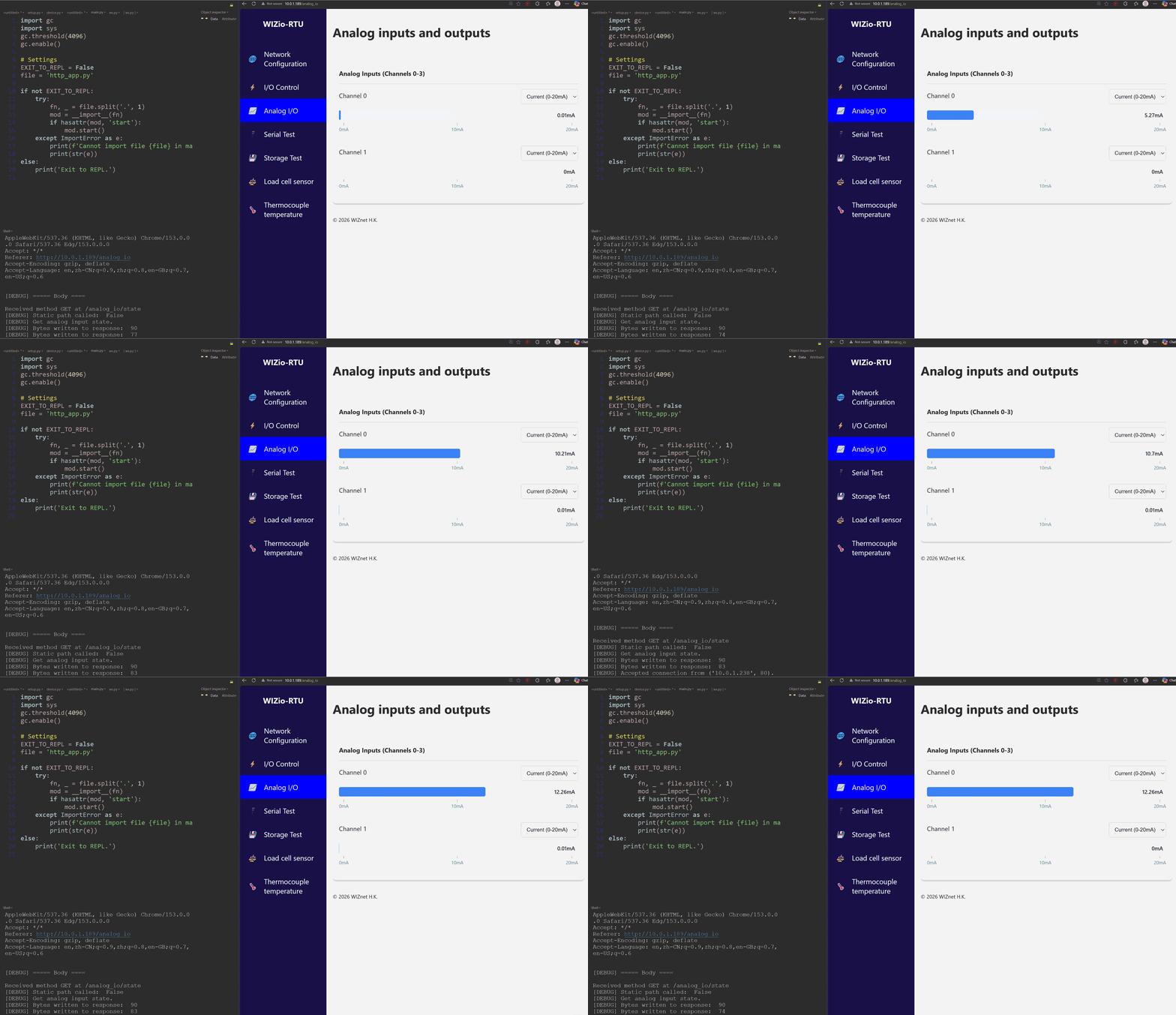
The Analog I/O page displays the two analog-input channels, AI0 and AI1.
Both channels are configured as 0–20 mA inputs by the supplied application.
The page retrieves the latest reading from the board at regular intervals.
Serial
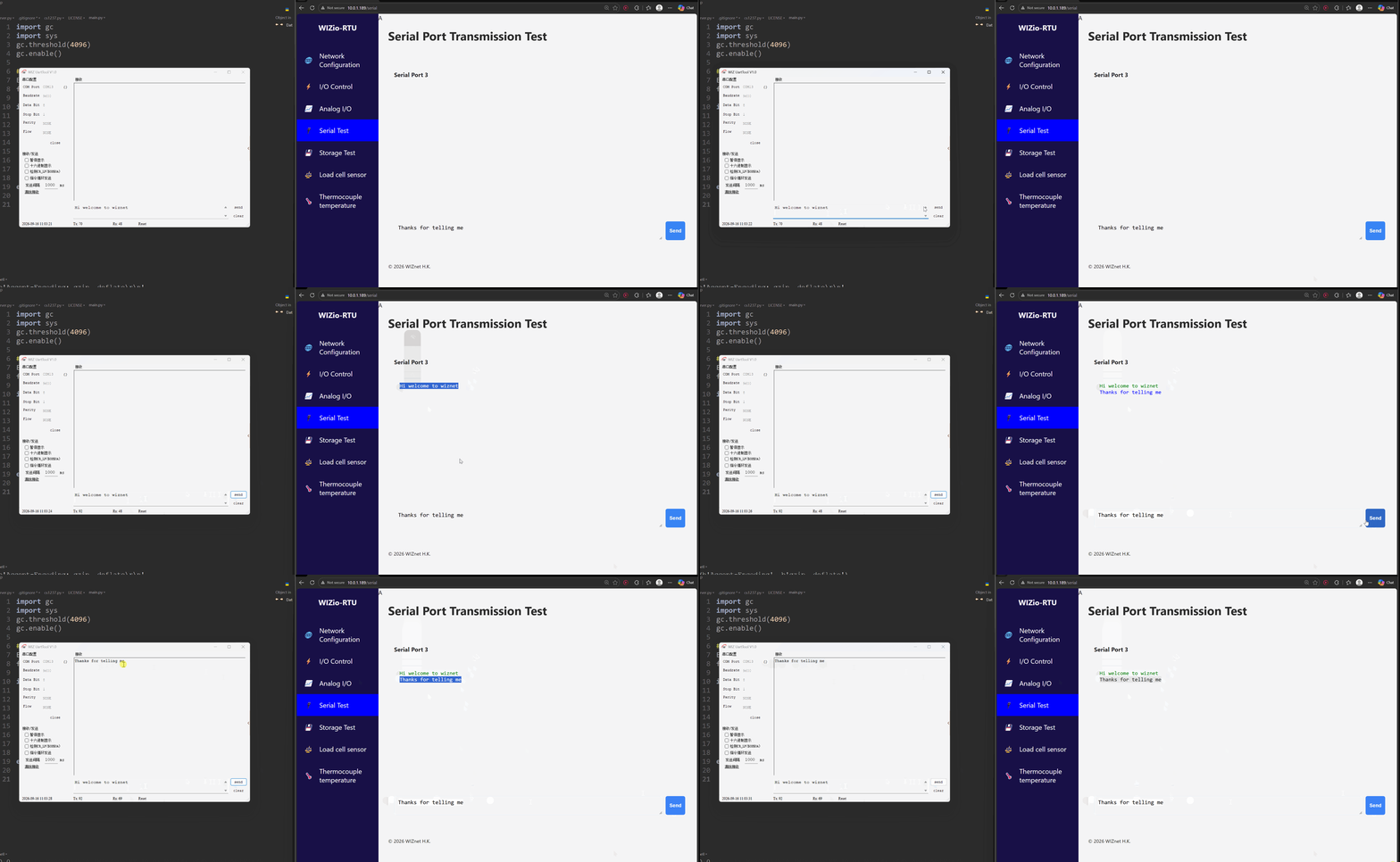
The Serial Test page sends text to and displays text received from the
configured UART. Serial support is optional: the application shows this page
only when the board is configured for UART rather than CAN in config.py.
Storage
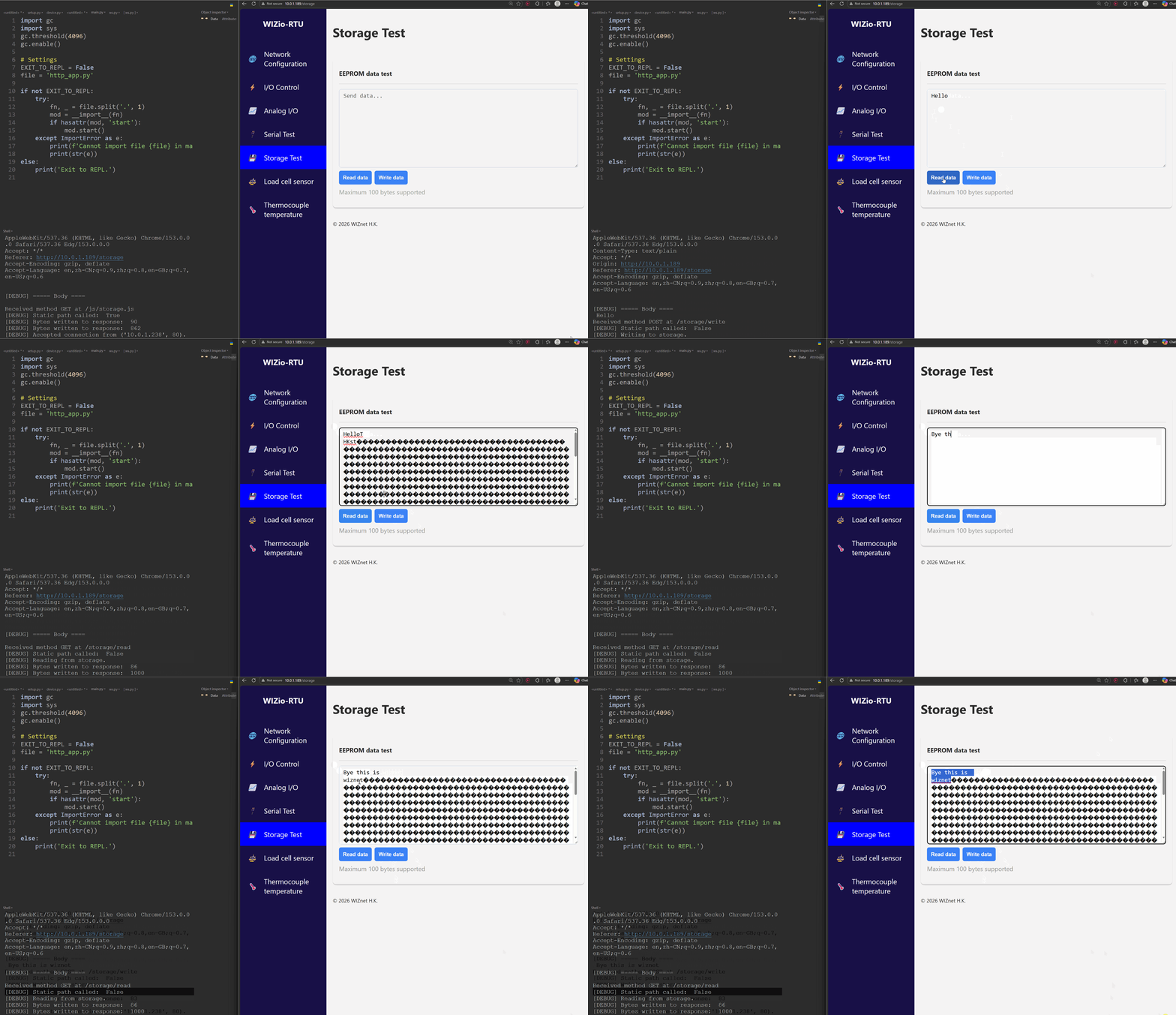
The Storage Test page reads and writes text in the onboard I2C EEPROM. The
application reads and writes from EEPROM address 0; each HTTP request is
limited to 1000 bytes by the device implementation.
Load Cell
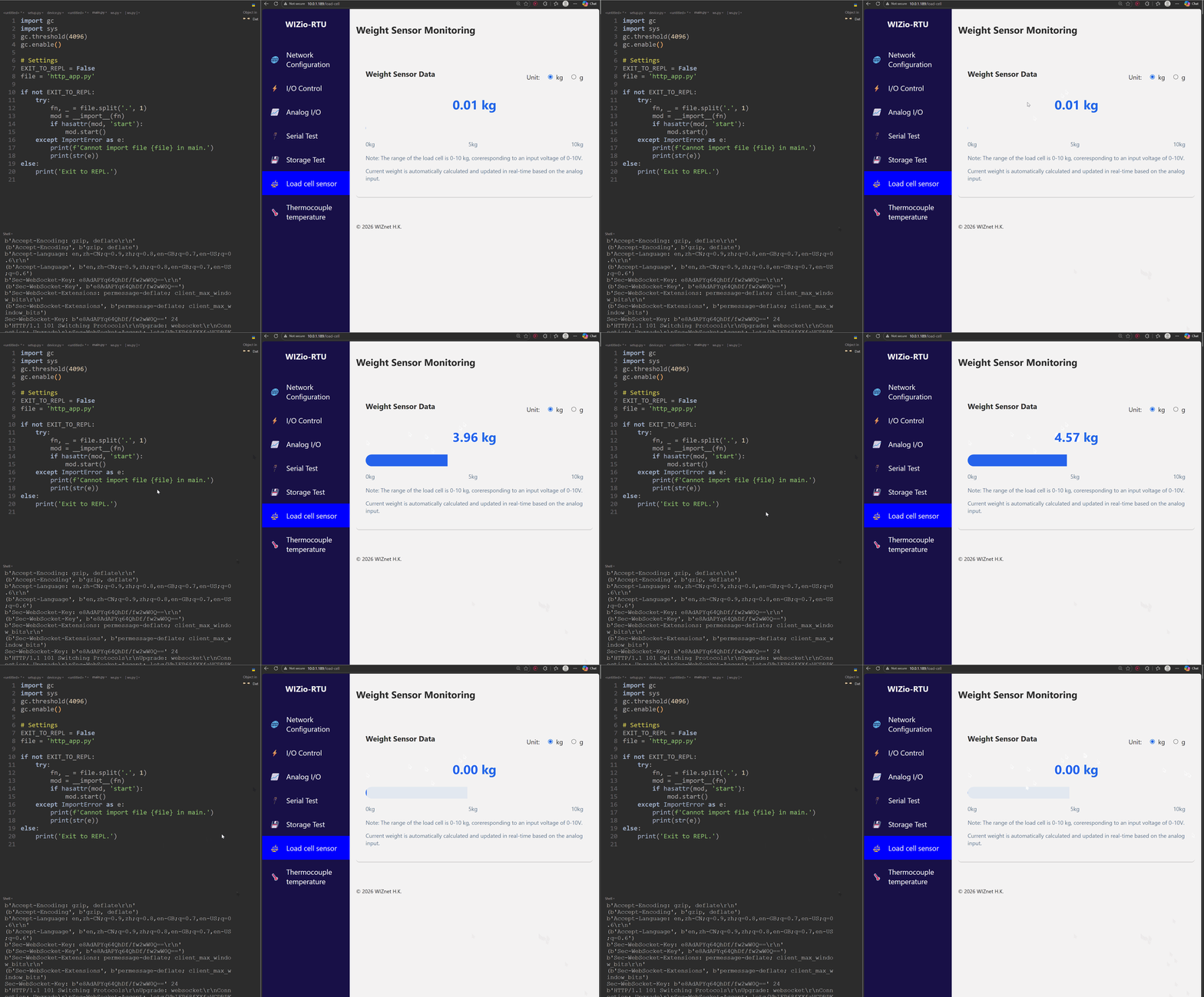
The Load Cell Sensor page displays real-time weight in kilograms or grams.
The default configuration is for a 10 kg, 2 mV/V load cell with 10 V
excitation. Adjust LOADCELL_CAPACITY_KG and LOADCELL_RATED_OUTPUT in
config.py to match the connected load cell before using the reading.
Type K Thermocouple
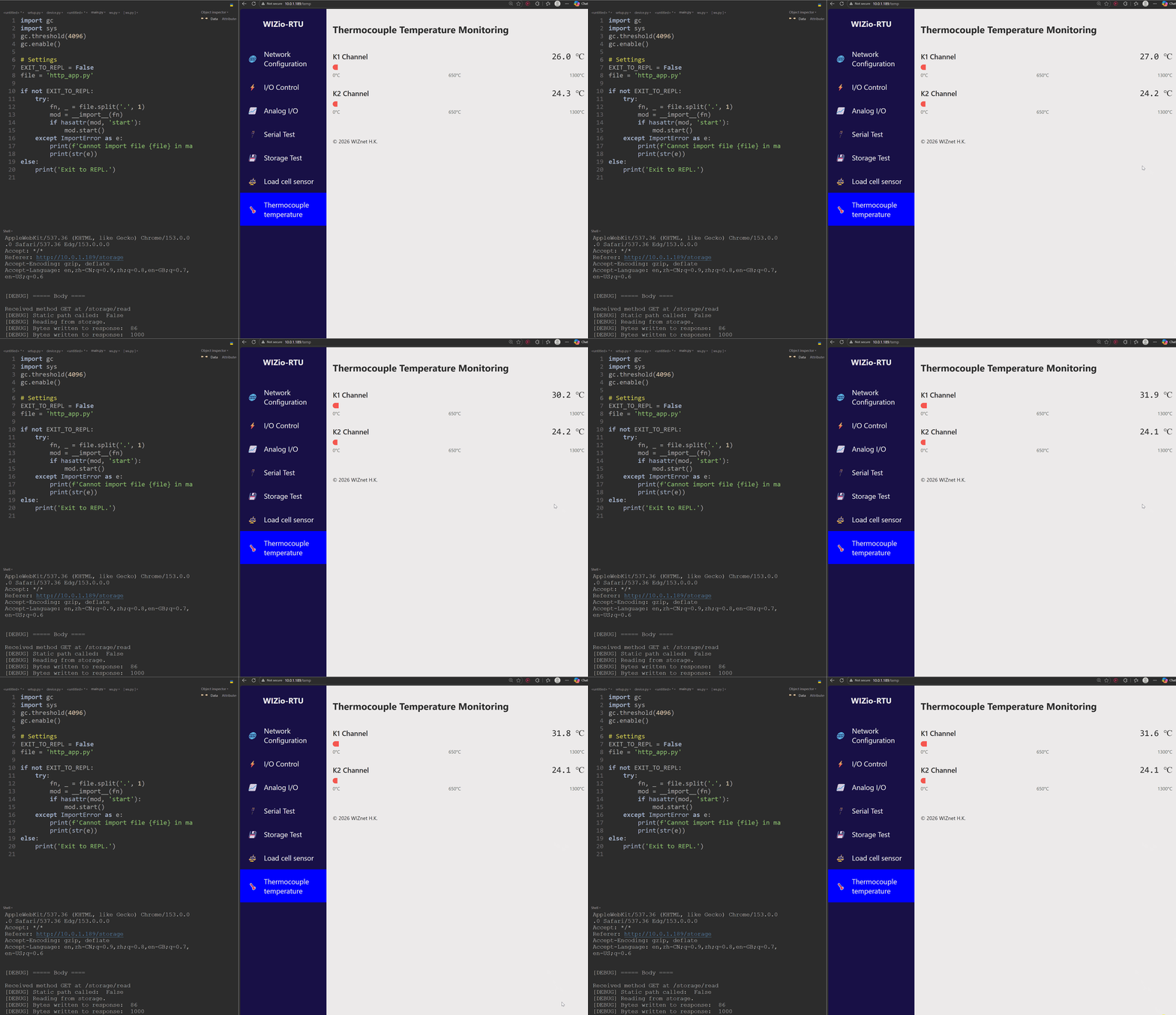
The Thermocouple Temperature page displays the two K-type channels, K1
and K2. The supplied configuration accepts readings from 0 to 1300 °C.
Temperature data is measured asynchronously so that the HTTP server remains
responsive while conversions are in progress.
Customizing the HTTP Application
The HTTP server uses http_app.py to define the web routes and the behavior
behind each page or API request. Edit it when you need to add or change a page,
an API endpoint, or peripheral behavior. server.py provides the HTTP and
WebSocket servers, while device.py contains the hardware access functions.
For the route list, request formats, and WebSocket telemetry messages, see the following reference.
MQTT Device
Important
Visit WIZio-SEN MQTT Device for the source code of this project.
The MQTT version provides the same core WIZio-SEN functions as the HTTP application, but exposes them through an MQTT broker instead of a web page. It is useful for remote monitoring, automation systems, dashboards, and other applications that already use MQTT.
The supplied MQTT application supports:
Network configuration and status
Relay output control for
RY1andRY2Digital input monitoring for
IN1andIN2Analog input monitoring for
AI0andAI1RS485/UART transmit and receive
EEPROM read, write, and wipe operations
Load-cell weight telemetry
The MQTT application uses retained state messages by default. Subscribe to a state topic before sending commands so that the current device state is available immediately after the device connects.
Visit MQTT Topics Summary for the default topics.
Note
To test the MQTT functionalities of the board, you can run the MQTTDashboard script under the above repo.
Make sure you download Eclipse Mosquitto on your PC and start your MQTT Broker.
MQTT Demonstration
MQTT device Table of Contents
MQTT Setup
Clone the project and upload all files except mqtt.default.json to the device. The
application starts from main.py, which imports mqtt_app.py and runs the
MQTT device loop.
Before starting the application:
Copy
mqtt.default.jsontomqtt.jsonifmqtt.jsonis not already present.Set the MQTT broker address and port in
mqtt.json.Add the MQTT username and password when the broker requires authentication.
Check the hardware settings in
config.py. The supplied configuration uses DHCP and RS485/UART at9600baud, with 8 data bits, no parity, and 1 stop bit.Upload the Python files and JSON configuration to the board, then reset it.
Example mqtt.json:
{
    "host": "192.168.1.100",
    "username": null,
    "password": null,
    "port": 1883
}
The MQTT client uses the WIZnet chip MAC address as its MQTT client ID. On startup it connects to the broker, subscribes to all command topics, publishes the initial device states, and then checks for commands and hardware changes continuously.
Network Configuration
Publish a JSON object to network_config/set to change the Ethernet
configuration. Set dhcp to true to request an address automatically:
{
    "dhcp": true
}
For static addressing, set dhcp to false and provide all four IPv4
settings:
{
    "dhcp": false,
    "ip": "192.168.1.50",
    "mask": "255.255.255.0",
    "gateway": "192.168.1.1",
    "dns": "192.168.1.1"
}
The device validates the IPv4 values, reconnects the WIZnet interface, and
publishes the active configuration to network_config/state:
{
    "ip": "192.168.1.50",
    "mask": "255.255.255.0",
    "gateway": "192.168.1.1",
    "dns": "192.168.1.1",
    "dhcp": false
}
Digital I/O
The two relay outputs are controlled with a pin-specific topic. The <pin>
value is RY1 or RY2:
Topic: digital_output/RY1/set
Payload: {"value": 1}
Use 0 to turn the relay off. After the output is changed, the board
publishes its resulting value to digital_output/RY1/state. The two digital
inputs are monitored by the device and publish a new value when their state
changes:
digital_input/IN1/state
{"value": 1}
The initial states for all digital inputs and relay outputs are published when the MQTT connection is established.
Analog I/O
The board periodically samples AI0 and AI1, averages ten readings, and
publishes the result to analog_input/state:
{
    "AI0": {"value": 12.4, "mode": 1},
    "AI1": {"value": 4.8, "mode": 1}
}
In the supplied configuration both analog inputs use 0-20 mA mode, which is
represented by mode 1. Voltage mode is represented by mode 0 and is
calculated according to the board configuration.
The MQTT handler includes an analog-output command topic, but the supplied WIZio-SEN device configuration defines no analog-output channels. Therefore analog output is not available in the default application.
Serial
When CAN is not configured, the board uses UART4 for the RS485 interface. The
default settings are 9600 baud, 8 data bits, no parity, and 1 stop bit.
Publish UTF-8 text to uart/write to transmit it through RS485:
Topic: uart/write
Payload: temperature=25.4
Data received from the UART is published as UTF-8 text on uart/read. Match
the external serial device settings with the values in config.py.
(mqtt-storage)
EEPROM Storage
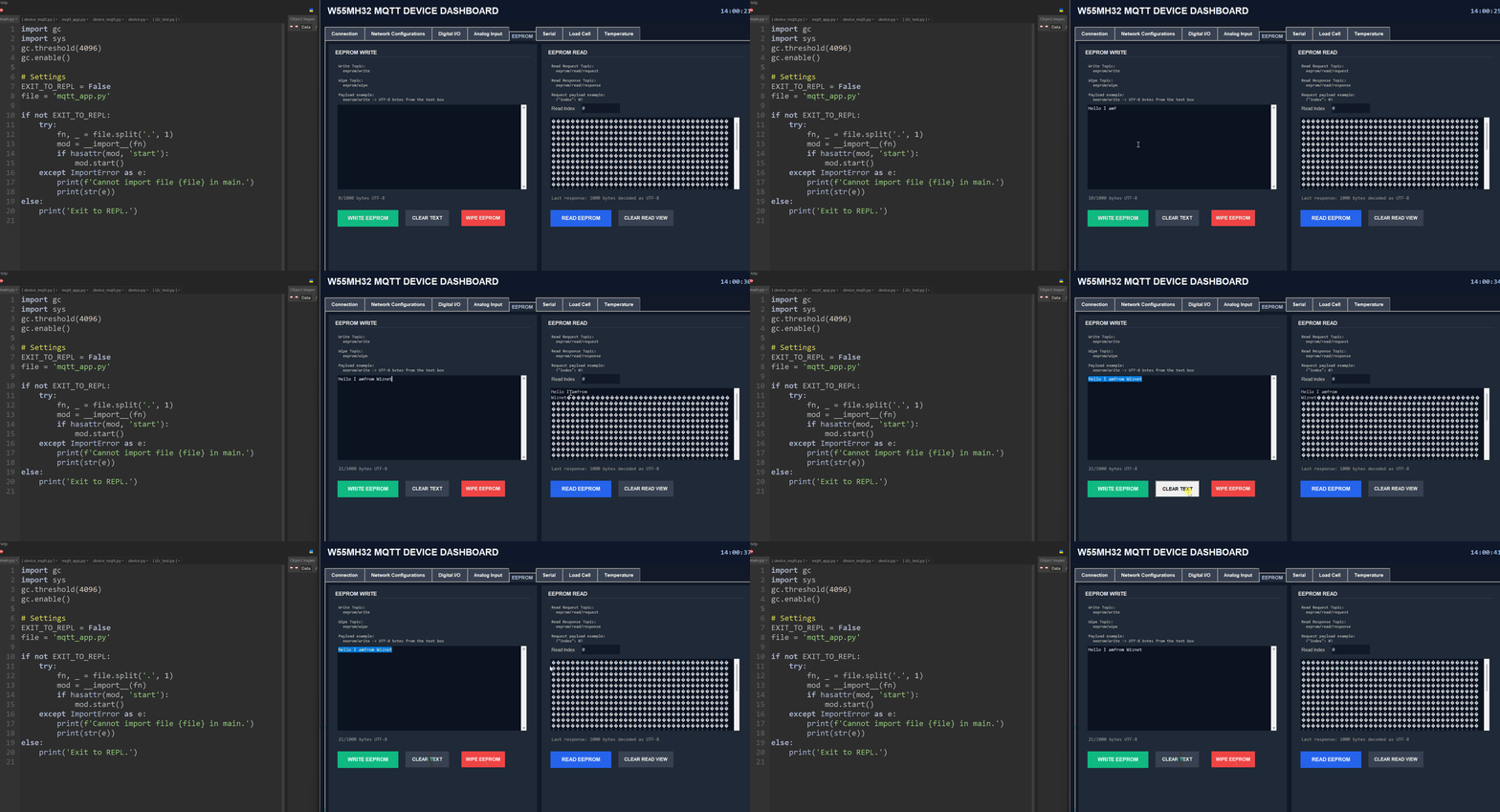
The application uses the onboard I2C EEPROM and limits each read and write to
1000 bytes. The supplied handlers use address 0 for writes.
Write UTF-8 text with:
Topic: eeprom/write
Payload: device-name=WIZio-SEN
Request a read from a starting index with JSON:
Topic: eeprom/read/request
Payload: {"index": 0}
The response is published as raw bytes on eeprom/read/response. To erase the
EEPROM, publish the exact UTF-8 payload True to eeprom/wipe.
Load Cell
The load-cell reader publishes averaged weight values in kilograms to
loadcell/weight. The supplied configuration expects a 10 kg, 2 mV/V
load cell with 10 V excitation. Change LOADCELL_CAPACITY_KG and
LOADCELL_RATED_OUTPUT in config.py to match the connected sensor before
using the readings.
Type K Thermocouple
The MQTT runtime can publish two K-type thermocouple readings to temp/k1 and
temp/k2 when the CS1237/CS1238 driver and temperature limits are enabled in
config.py. The sensor is polled without blocking the MQTT loop, and each
topic carries the latest temperature value in degrees Celsius.
Customizing MQTT Behavior
Edit mqtt_app.py when adding or changing command topics. Use
client.add_topic() to register a handler, decode the payload, call the
appropriate Device method, and publish a state or response when one is
available.
The main files have these responsibilities:
mqtt_app.pydefines subscribed command topics and their handlers.device_mqtt.pymanages the broker connection, subscriptions, polling, and published state topics.device.pyprovides the WIZio-SEN hardware functions.setup.pyinitializes the WIZnet Ethernet interface.mqtt.jsonstores the broker connection settings.main.pystarts the MQTT application.
For most application changes, only mqtt_app.py and config.py need to be
edited.
Below you can find a more detailed explanation of each section of the WIZio-SEN MQTT application.
- MQTT Application Overview
- Network and Broker Configuration
- MQTT Topic Summary
- Initial State and Retained Messages
- Network Configuration Topics
- Digital I/O Topics
- Analog Input Topics
- Serial UART Topics
- EEPROM Topics
- Load-Cell Topic
- Thermocouple Topics
- Runtime, Restart, and Error Behavior
- Customizing the MQTT Application
- Example Usage With Mosquitto
WebREPL
Important
Visit the W55MH32 WebREPL repository to download the source code for this project.
MicroPython WebREPL allows you to connect to and control your device remotely through a web browser.
Use the official MicroPython WebREPL client page to connect to and test your device.
Note
The network interface uses DHCP by default. To use a static IP address instead, open setup.py, update the network configuration values, and set the dhcp parameter to False.
Clone the repository and upload all .py files to the MicroPython device.
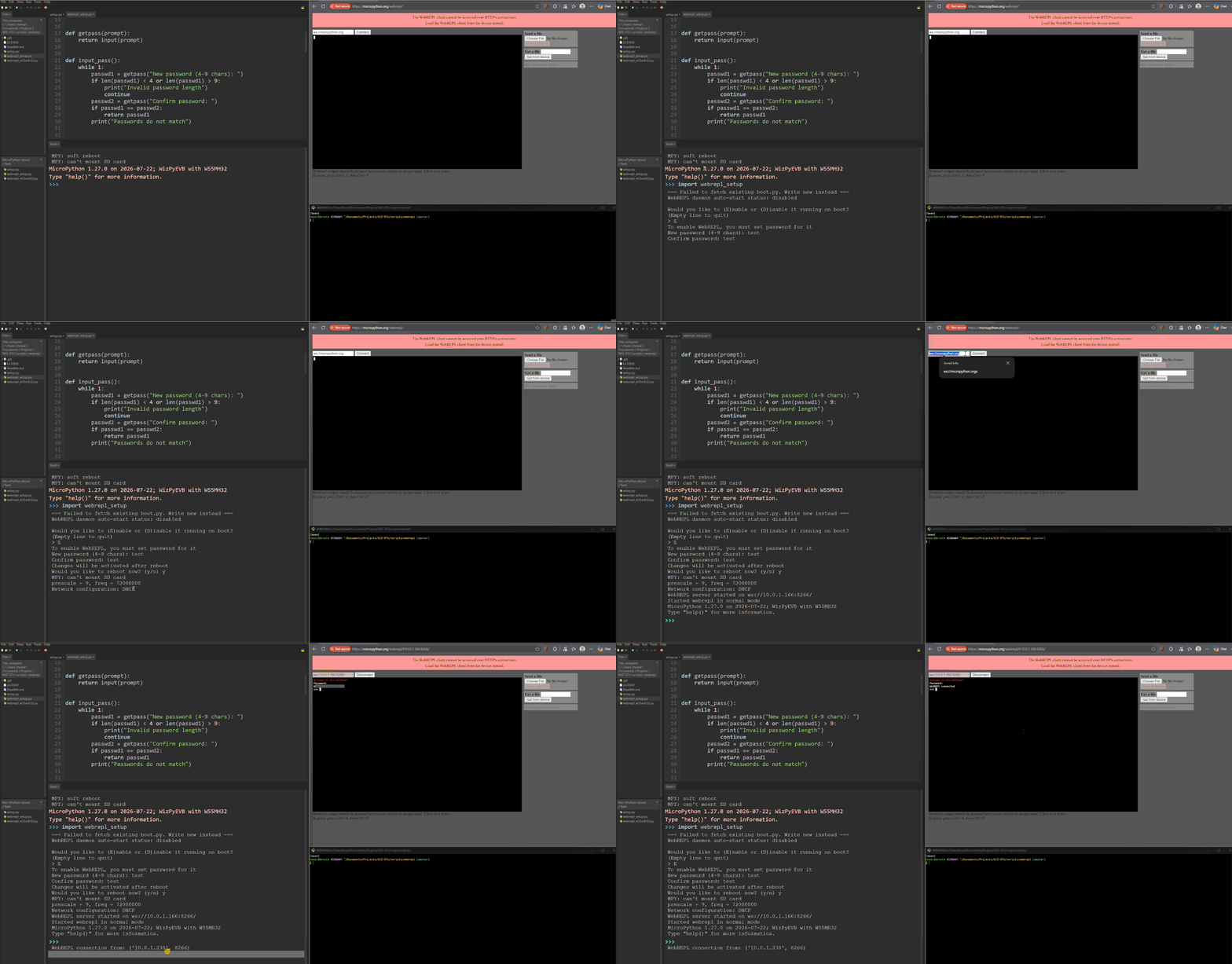
Open the terminal in your preferred MicroPython editor and run:
import webrepl_setupFollow the instructions shown in the terminal. After setup is complete, you will be asked whether you want to reboot the device.
If WebREPL on boot is enabled,
webrepl_w55mh32.pywill run automatically after the device restarts.When WebREPL starts successfully, the terminal will display a WebSocket address for connecting to the device.
Open the MicroPython WebREPL client page. Replace the default WebSocket address with the address displayed in the terminal:
ws://IP_ADDRESS:PORTClick Connect and enter the WebREPL password configured during setup.
After the connection is established, the MicroPython REPL prompt should appear in the browser.
Attention
Some MicroPython editors, such as Thonny, use Raw REPL mode. While Raw REPL is active, commands entered through the browser may not affect the device terminal.
To resolve this issue, close Thonny and reset the board before connecting through WebREPL. Alternatively, use mpremote to monitor and interact with the device.
Monitoring WebREPL with mpremote
mpremote can be used to monitor the device through its USB or serial REPL while testing a WebREPL connection from a browser. This is useful for viewing startup messages, connection attempts, and any errors reported by the board.
Install mpremote
Install mpremote by following the official MicroPython mpremote installation guide.
After installation, start mpremote using the command appropriate for your operating system.
On Linux:mpremote
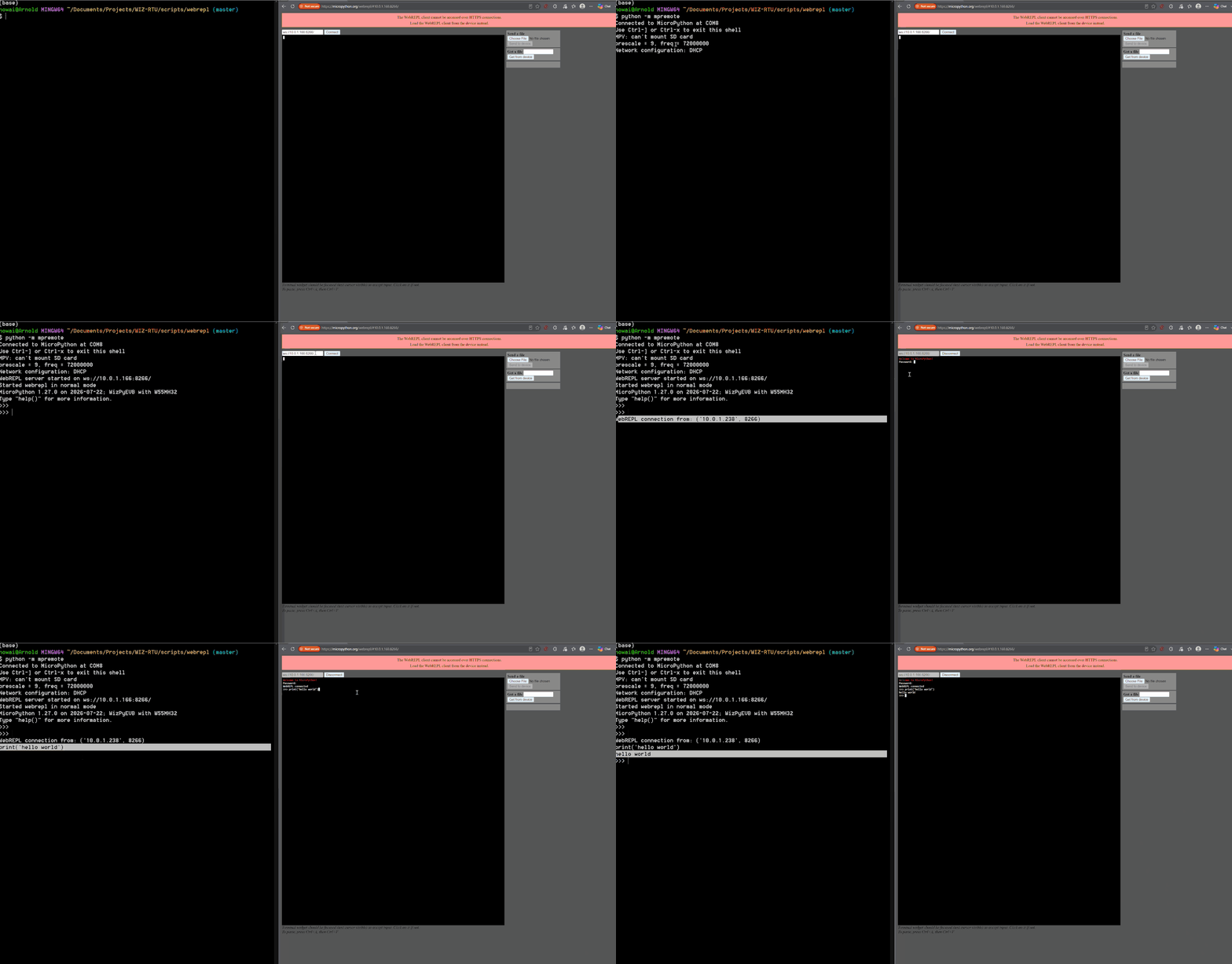
On Windows:python -m mpremoteIf the board is connected and recognized by your computer,
mpremoteshould automatically connect to its serial REPL.
Note
Remeber to close any Raw-REPL terminal that uses the device.
Keep mpremote open so that you can monitor messages from the device.
Then, on the MicroPython WebREPL page in your browse, test the connection with:
print("Hello, world!")
File transfer using WebREPL
WebREPL supports more than remote REPL access. It can also transfer files between the browser and the device.
The WebREPL interface provides two file-transfer operations:
Download a file from the device.
Upload a file to the device.
Important
Avoid modifying or replacing a file while it is being executed by the device. Stop the running program or return to the REPL before transferring application files.
For the following demonstration, I will use Thonny instead of WebREPL, since file transfer works also when Raw REPL is present and it is much more clearer.
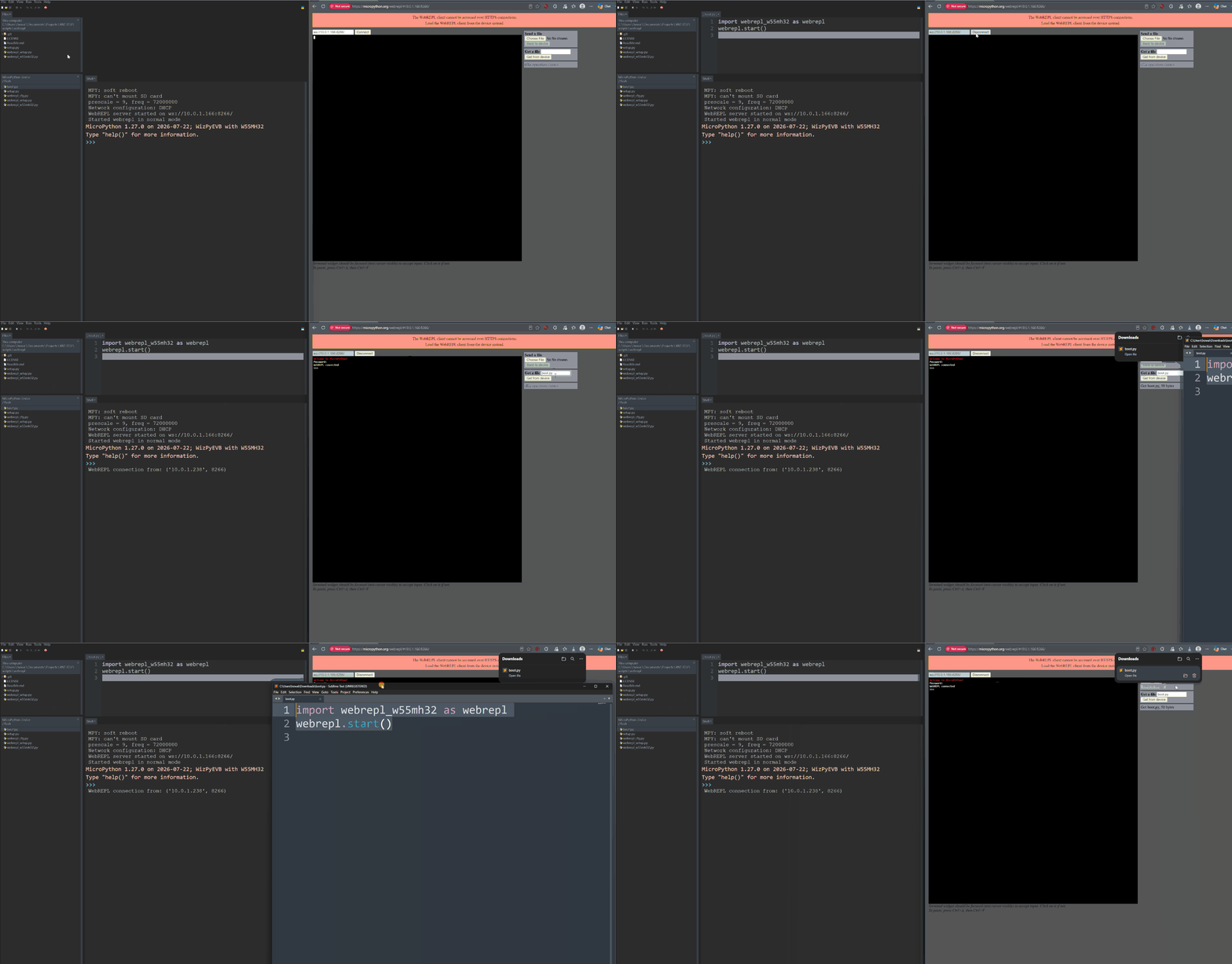
Download a File from the Device
Enter the name of the file stored on the device and use the WebREPL download control to save it to your computer.
Upload a File to the Device
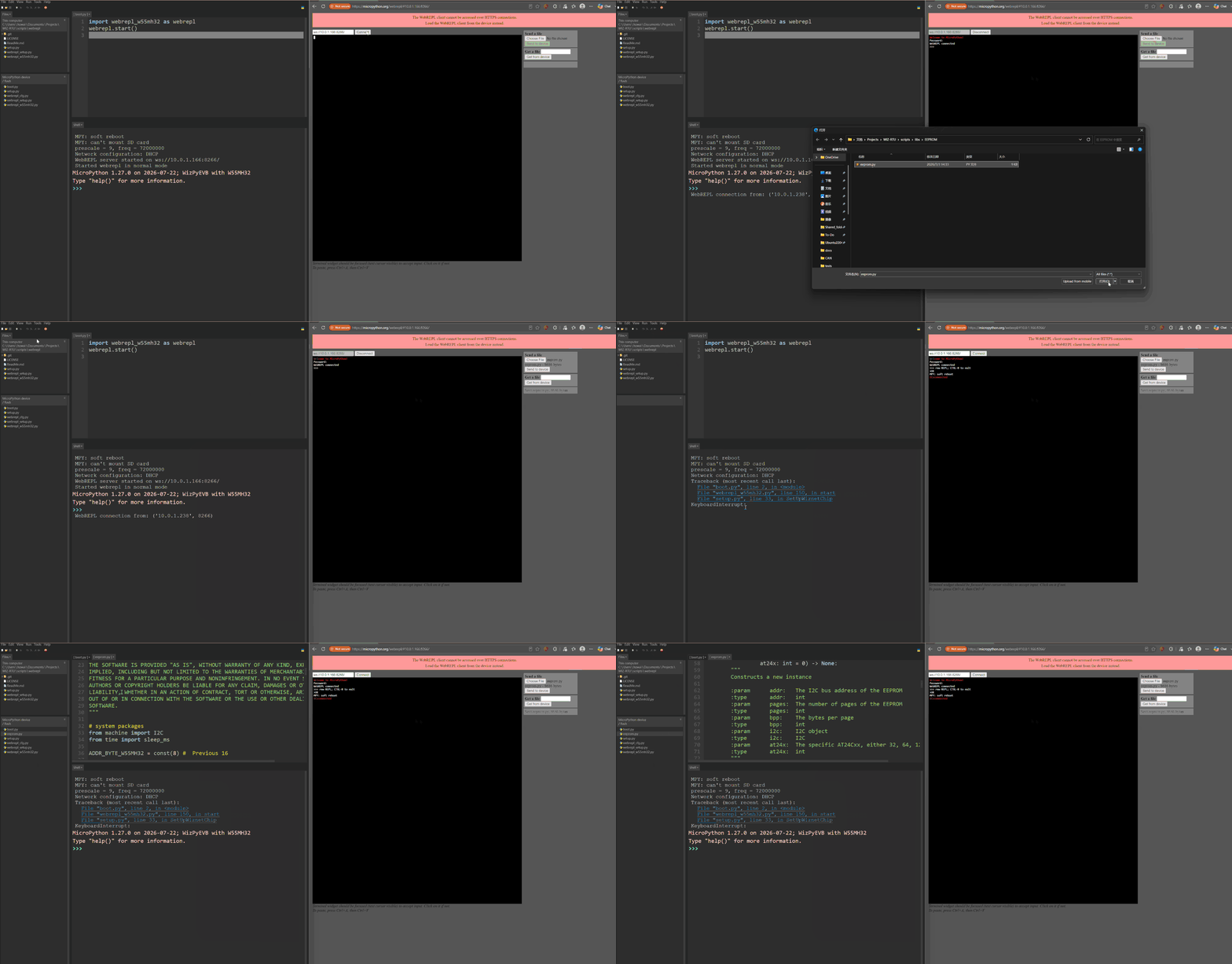
Select a file from your computer and use the WebREPL upload control to transfer it to the device.
You can also run
import os
os.listdir()
to view if the file appeared in the system.
General Board Controls
You can find similar scripts as in W55MH32L-EVB.
Network
See Networking.
Delay and timing
See Delay and timing.
Pins and GPIO
Since some pins are being attached already to input/output/analog circuit, Most pins are being limited to its own functions.
for example, since IN1 is binded to an input circuit,
from machine import Pin
pin = Pin('IN1', Pin.OUT)
This will causes error:
>>> Pin('IN1', Pin.OUT)
Traceback (most recent call last):
  File "<stdin>", line 1, in <module>
ValueError: invalid pin mode: 1
Timer
See Timers.
RTC (real time clock)
ADC
See ADC (analog to digital conversion).
Note
ADC pins are only available on AI0/PA0, AI1/PA3.
SPI
See SPI bus
Attention
SPI is not available on the board except for the network interface of the W55MH32 chip.
I2C
See I2C bus
Note
I2C are only available on I2C(1) and I2C(2).
I2C(1) is used by the onboard EEPROM. I2C(2) is not connected by default. To use it, populate the required resistors on the board.
UART
Note
UART are only available on UART(3) and UART(4).
UART(4) is connected to the onboard RS485 circuit. UART(3) shares its pins with I2C(2). Therefore, they cannot be used at the same time.