W55MH32 and XiaoZhi Chatbot
Important
Visit W55MH32 MCP ChatBot for the source code of ths project.
Background
As AI technology continues its rapid advancement, the integration of intelligent models onto low-level hardware architectures has become more relevant than ever. At WIZnet, we make sure our products could keep up with the current technologies to give a better experience to our customers.
Inspired by the project xiaozhi-esp32, we have developed our own MCP Chatbot powered by the W55MH32Q/L-EVB development board.
XiaoZhi-ESP32 is a one of the fastest growing AI project that allows you to communicate with Large Language Models (LLM) through your hardware to achieve things like hardware control through voice commands. It has gain significant popularity since its development, especially in the IOT market.
MicroPython is also a very well-known language that allows developers to use Python as development on embedded systems. This allows newer developers to skip the traditional C++ learning curve to learn embedded systems and start their own bare metal journey easily with the help of thousands of MicroPython libraries available and support on the web.
We believe that by integrating these powerful technologies into one, having your own customized AI assistants will no longer be just a dream.
Project Overview
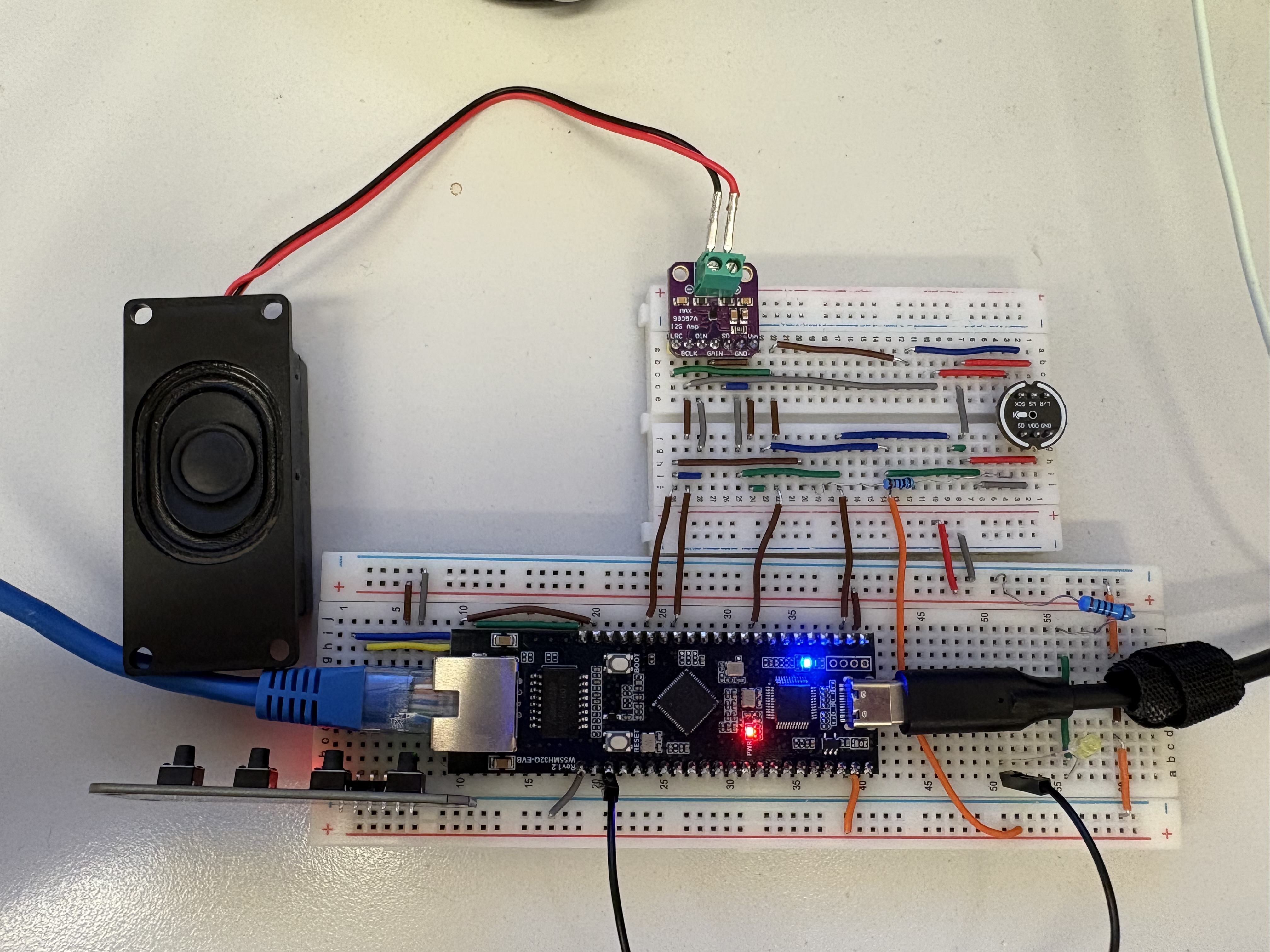
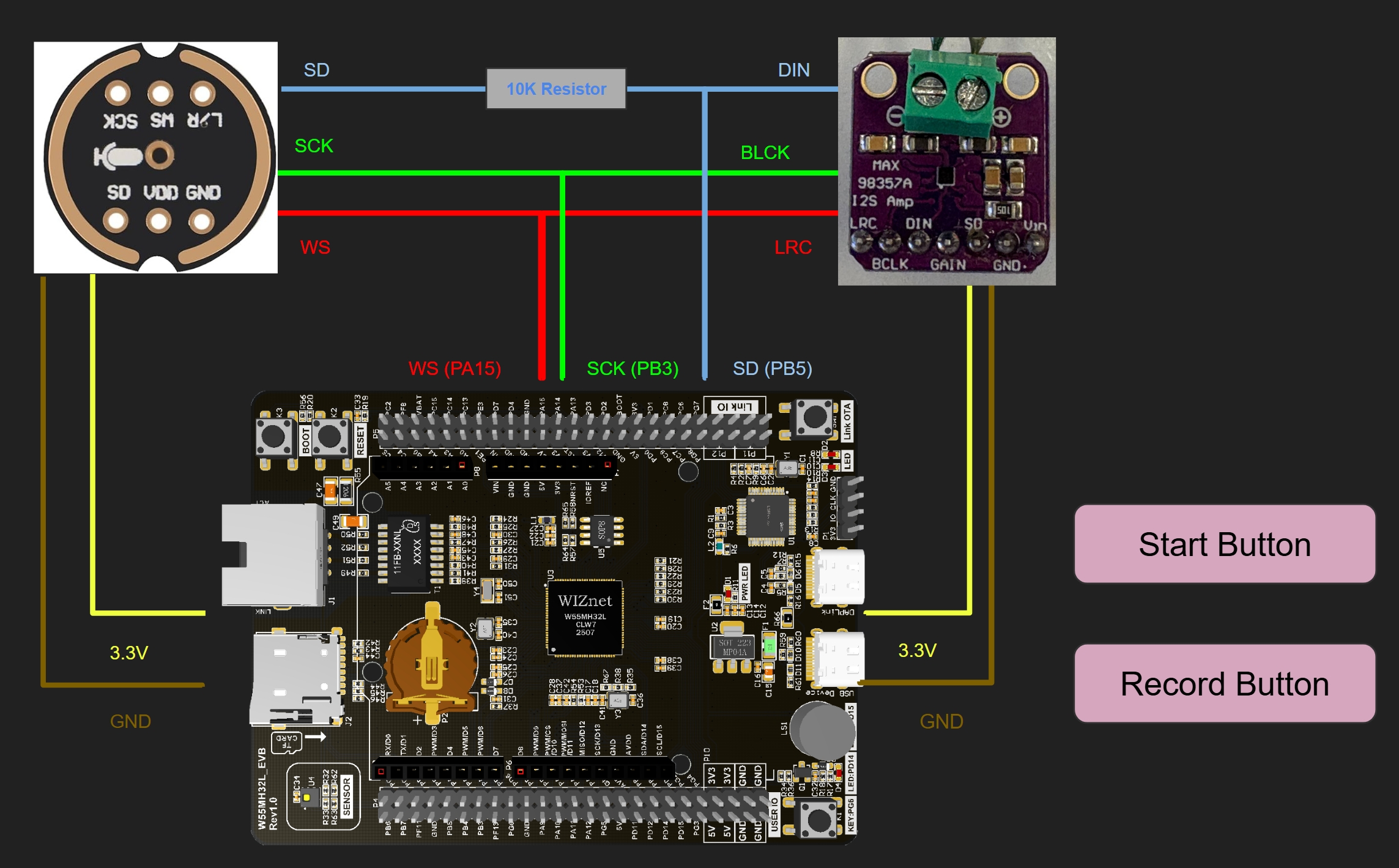
Below is the connection diagram of the W55MH32L_EVB MCP Chatbot.
Note
Both the Q and L version uses PA15, PB3 and PB5 for the speaker and microphone.
As the diagram shows above, the speaker and microphone are shared by the same connection. Therefore, by default, the board uses speaker mode but when the record button is being hold, the board is in microphone mode.
You will also need internet access and run the scripts in order to connect to the AI server. Plug in an ethernet cable from your router to the board and plug in the USB port from the board to your PC.
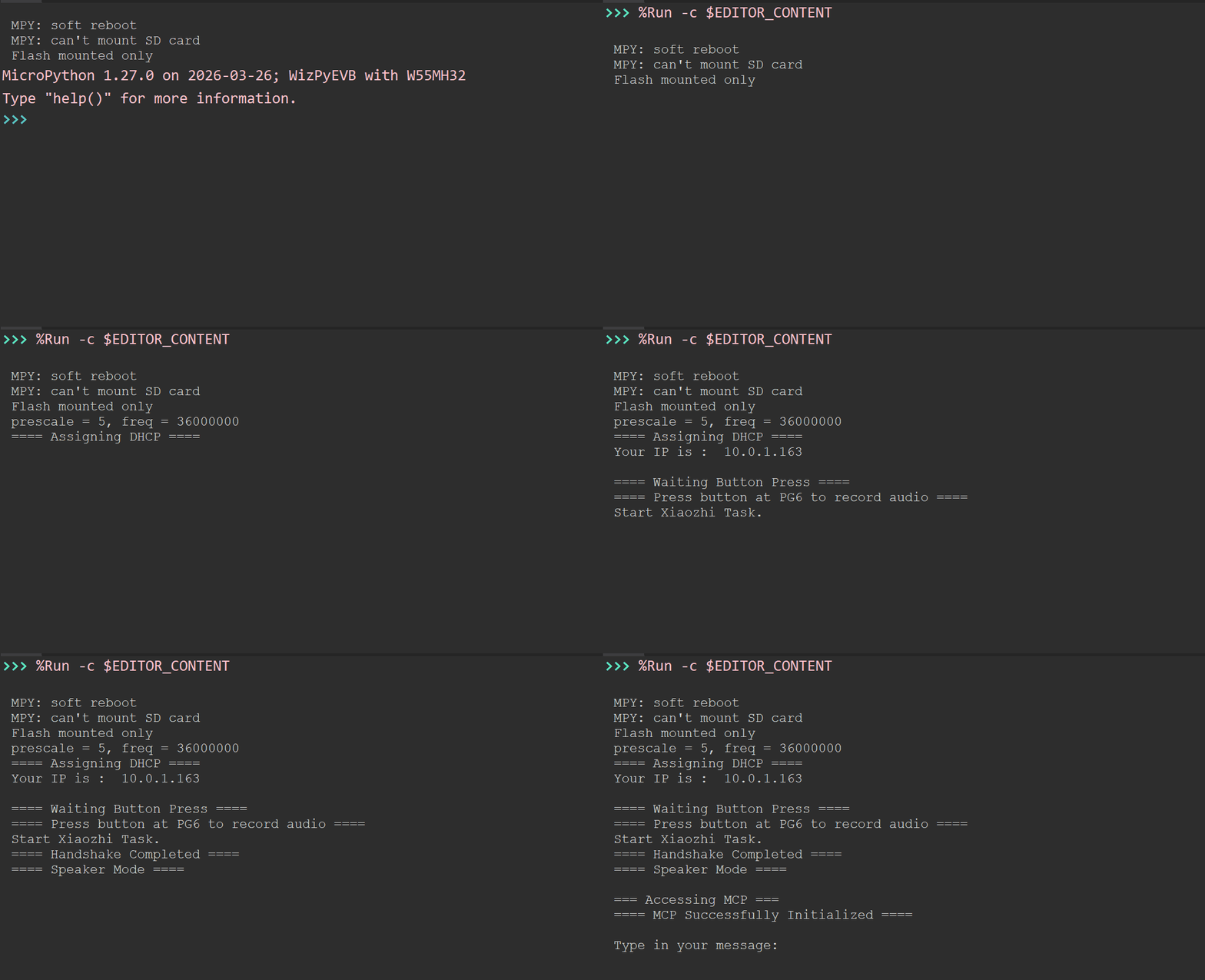
As you start the script, the program should prompt you to start the connection by pressing the start button. Connection to the server will be started after pressing the button and now you should be able to communicate with the XiaoZhi AI. When the terminal asks you to type your message, you can now also access the microphone mode to talk to the agent.
Note
The official xiaozhi.me website does not provide support for the W55MH32L/Q_EVB board, so you will need to connect to our own implementation of xiaozhi-esp32-server. Information of the offcial website will be announced in the coming future.
Hardware Components & Connections
This section will talk about what you need for the chatbot and how to connect them together.
Board & Peripherals
For the components needed, you will need the following.
W55MH32Q_EVB (Purchase Link) / W55MH32L_EVB (Purchase Link)
I2S MAX98357A Amplifier and Speaker
INMP441 Microphone
A 10K Resistor
Two buttons
In the coming future, you can purchase the full component set on our official website.
Wiring Guide
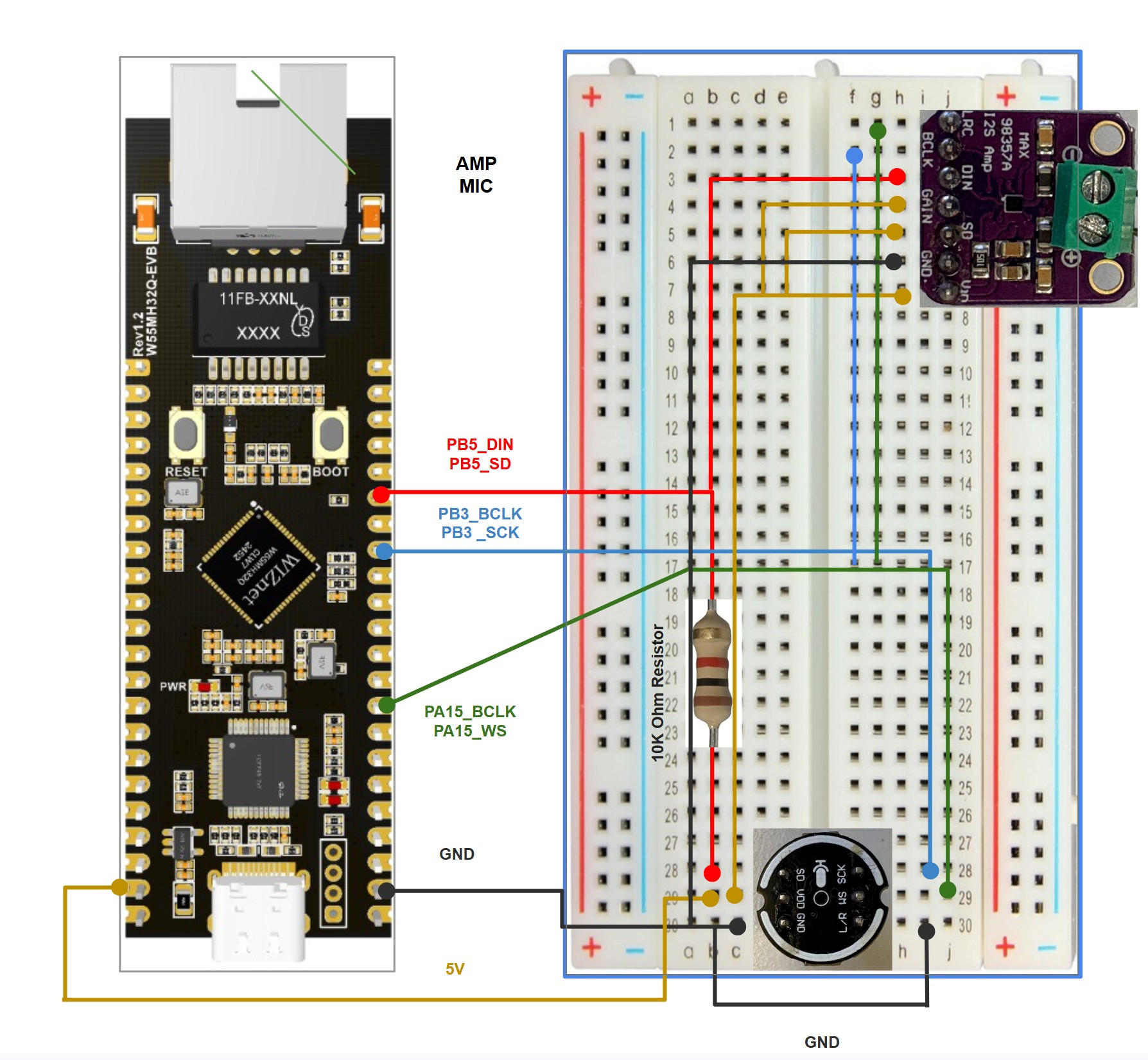
Let’s start by connecting the I2S components.
Note
W55MH32Q_EVB and W55MH32L_EVB uses the same pins for I2S connection.
Note
Putting the ground pin onto the alphabet sections of the board is essential to make the speaker and microphone more stable.
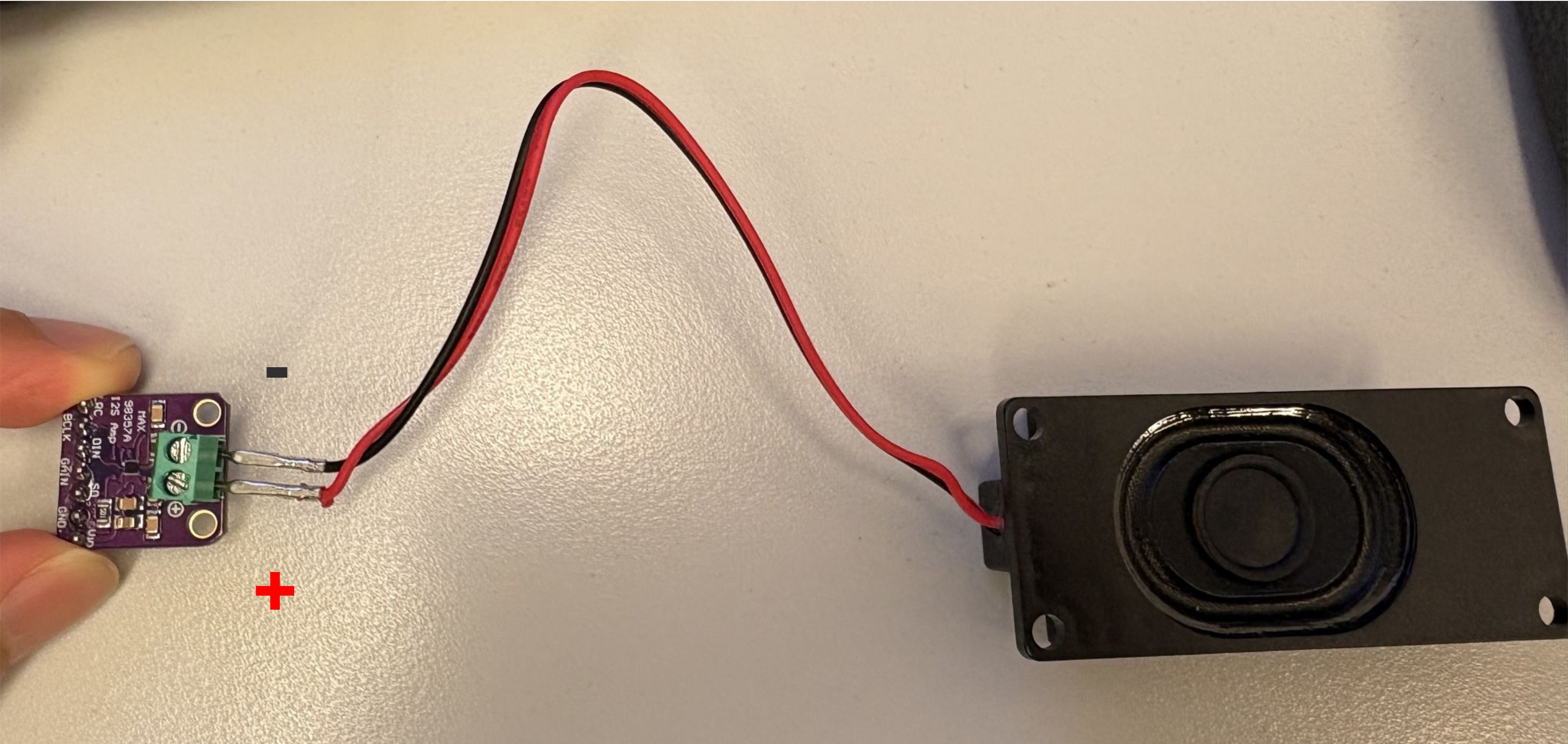
Also, insert your speaker to the other end of the I2S Amplifier.
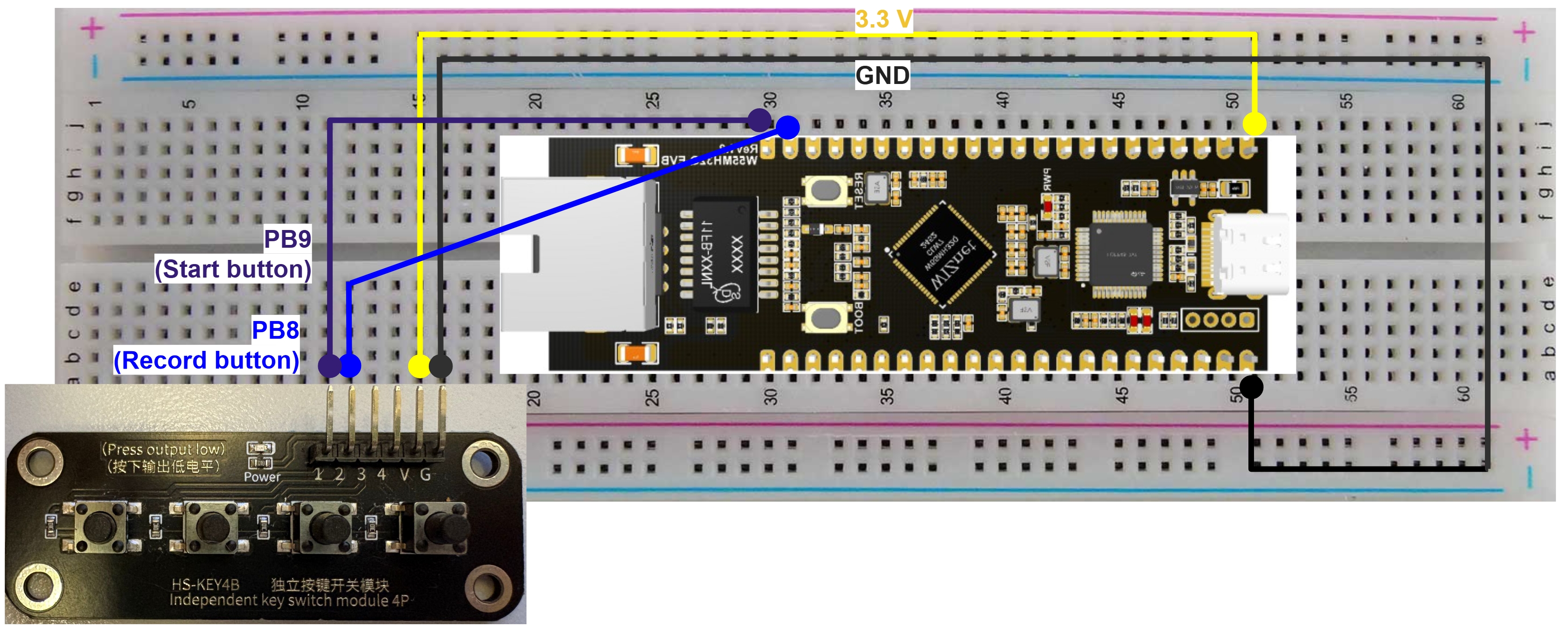
Next, for the buttons and the MCU, you can connect on whatever Pin that can use GPIO as they are used for:
Starting the connection
Starting the recording
In my implementation, I used Pin PB9 for the start button and Pin PB8 for the recording button.
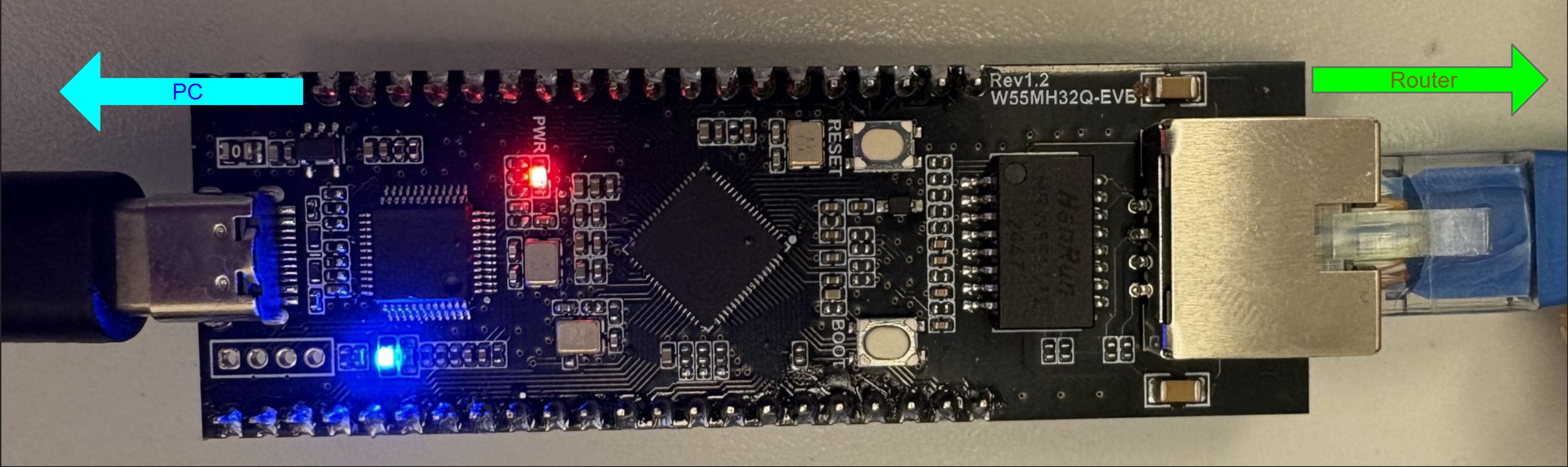
Lastly, connect your board to your PC and also connect your board directly to your router.
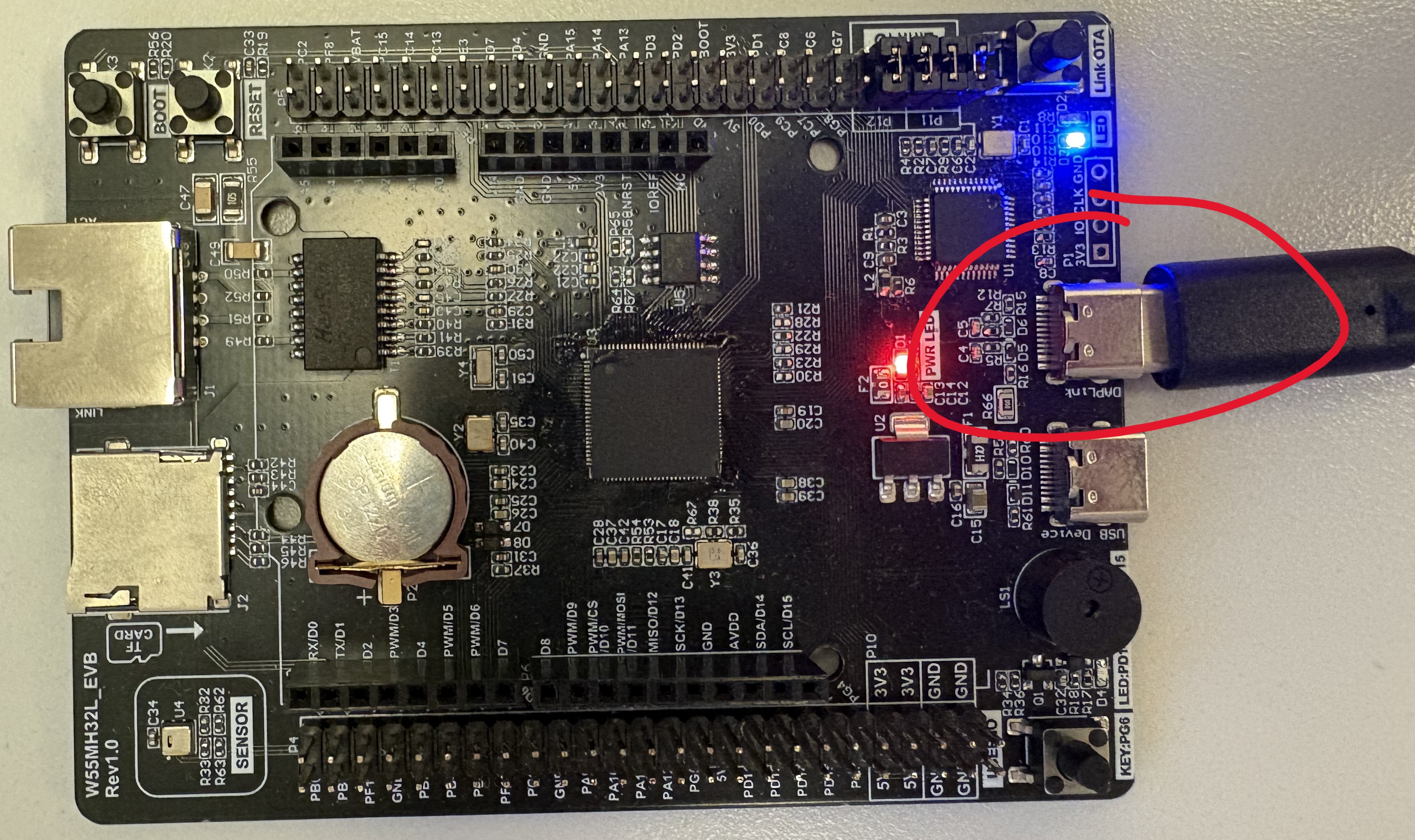
If you are using the W55MH32L_EVB, connect the port on the right side to your PC.
Software Configuration & Customization
Installation
First, install the latest firmware on W55MH32 MicroPython Documentation website and make sure you have the ThonnyIDE opened.
Then, go to our GitHub repo page and clone it onto your personal computer.
git clone https://github.com/wiznethk-git/w55mh32_xiaozhi_mcp_chat_bot.git
Note
Alternatively, you can download the zip file here and uncompress the files to your PC.
Open the folder where the project is downloaded and use ThonnyIDE or any Micropython-compatible IDE to upload all the files except default_conf.py into the MCU.
Important
Before running app.py to start your program, you will edit these files before proceeding.
Configs
From the default_config.py, edit the config from the following. On completion, save the file as config.py and upload it to the MCU.
import uuid
client_id = uuid.uuid4()
secret = {
    'Client-Id':client_id
}

config = {
        # General
        'is_secure': False,
        'async_timeout': 10,

        # I2S
        'I2S_ENABLED': True,

        # Websocket Specific
        'ws_delay_ms': 0,

        # MCP
        'mcp_enabled': True,

        # OTA Specific
        'board_type':'YOUR_BOARD_TYPE',

        # MQTT
        'MQTT_USERNAME': 'MQTT_USERNAME',
        'MQTT_PASSWORD': 'MQTT_PASSWORD',
        'MQTT_IP':'MQTT_HOST',
        'MQTT_ENABLED':True,

        # Button Pins
        'START_BUTTON':'PB9',
        'RECORD_BUTTON':'PB8',
}
You can set I2S, MCP and MQTT to True or False depending on your device’s needs, but I recommend keeping MCP and MQTT as True to have a more all-rounded experience. If you need to hear what the server returns, then you can enable I2S.
Ethernet Connection
DHCP is used by default. It should automatically connect to internet if you connect the board to your router.
However it fails, you can use static ip instead by accessing network details through ipconfig and amend the configurations on top of the setup.py file.
Please visit our reference script page for static ip configuration.
MCP
To add / remove any MCP tools that calls to your board, you would need the following:
Create a function for your MCP Tool with parameters:
def func_name(self, device, args):
    ...
Register a MCPTool object in
__init__.pyundermcp.py. You can refer to this documentation on how the protocol of MCP works.
Note
It is recommended that the description for the mcp tool to be as short and precise as possible so that it reduces the number of tokens and avoid RAM being used up on the board.
MQTT
To work with MQTT on our server, you would need the following:
Register a feed on our AIOT website. The mqtt subdirectory will be your
{ Account_Name } / { Feed_Title }.Open mqttHandler. Add your subdirectory to the decorator and create a function that runs after receiving any updates on this topic.
Note
Using MQTT with our server is currently under development. However, you can test these functions on a local mqtt server.
MISC
To add your own functionalities to the W55MH32EVB board, you may need to disable MQTT_ENABLED or MCP_ENABLED under conf.py to avoid memory error.
If you are interested in how the MCU and server communicates, visit docs directory on 78/xiaozhi-esp32: An MCP-based chatbot or visit 小智 AI 聊天机器人百科全书 for the working principle between the XiaoZhi server and the bot.
Website Configurations
Acknowledgement
Our website is developed from the open-source project xiaozhi-esp32-server licensed under the MIT License. We would like to express our sincere gratitude to the original authors and community contributors for their foundational work.
Before starting your jounery on using your first AI assistant, you would need to register your device on our website.
First, prepare your board on the side and login to our offical website.
Note
Registration is currently not available to the public. Only selected users will be allowed to access the management page due to the server still being under development.
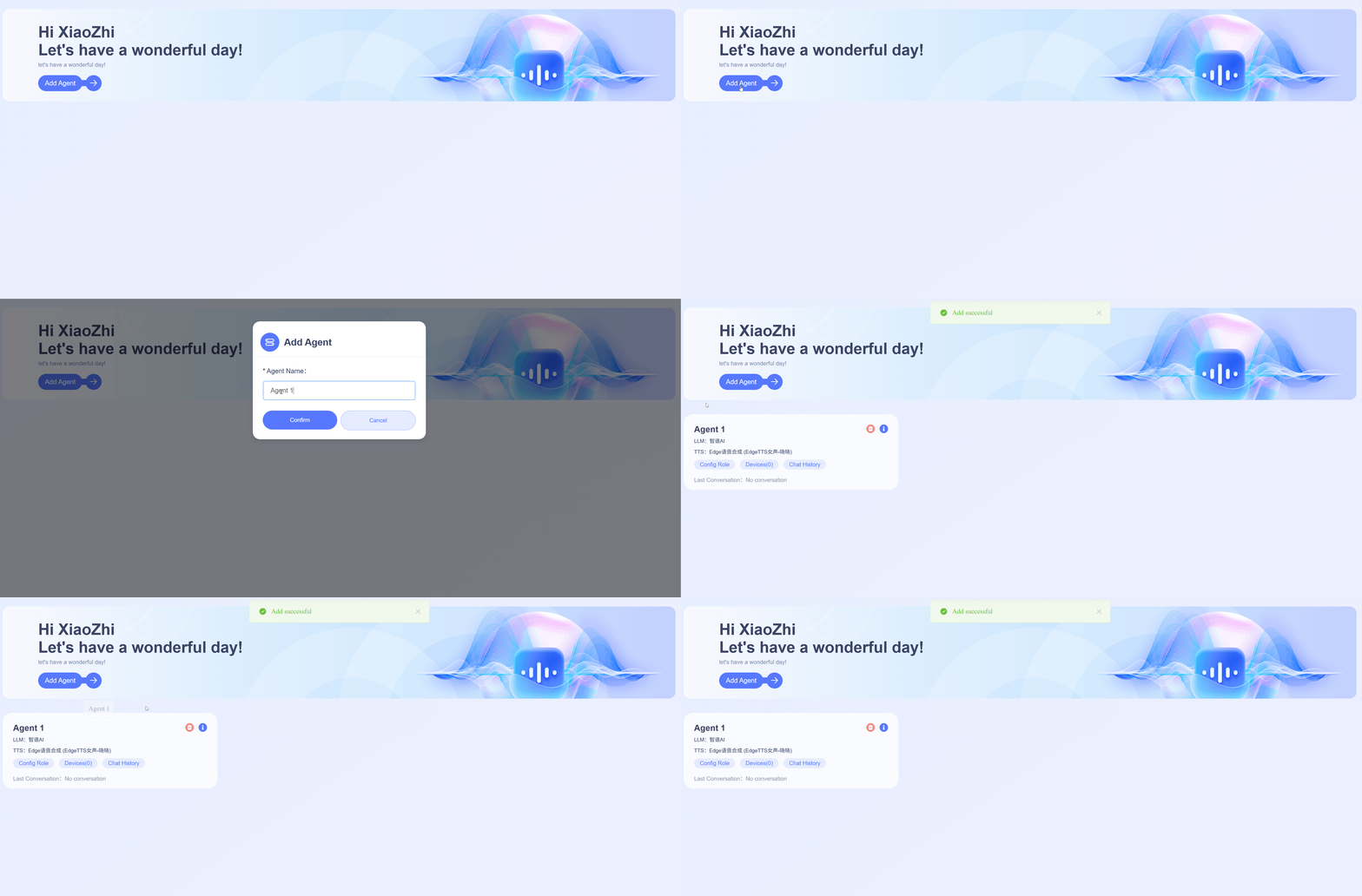
Next, create your own agent by clicking the Add Agent Tab. You should now see your agent with the given name under the Add Agent tab.
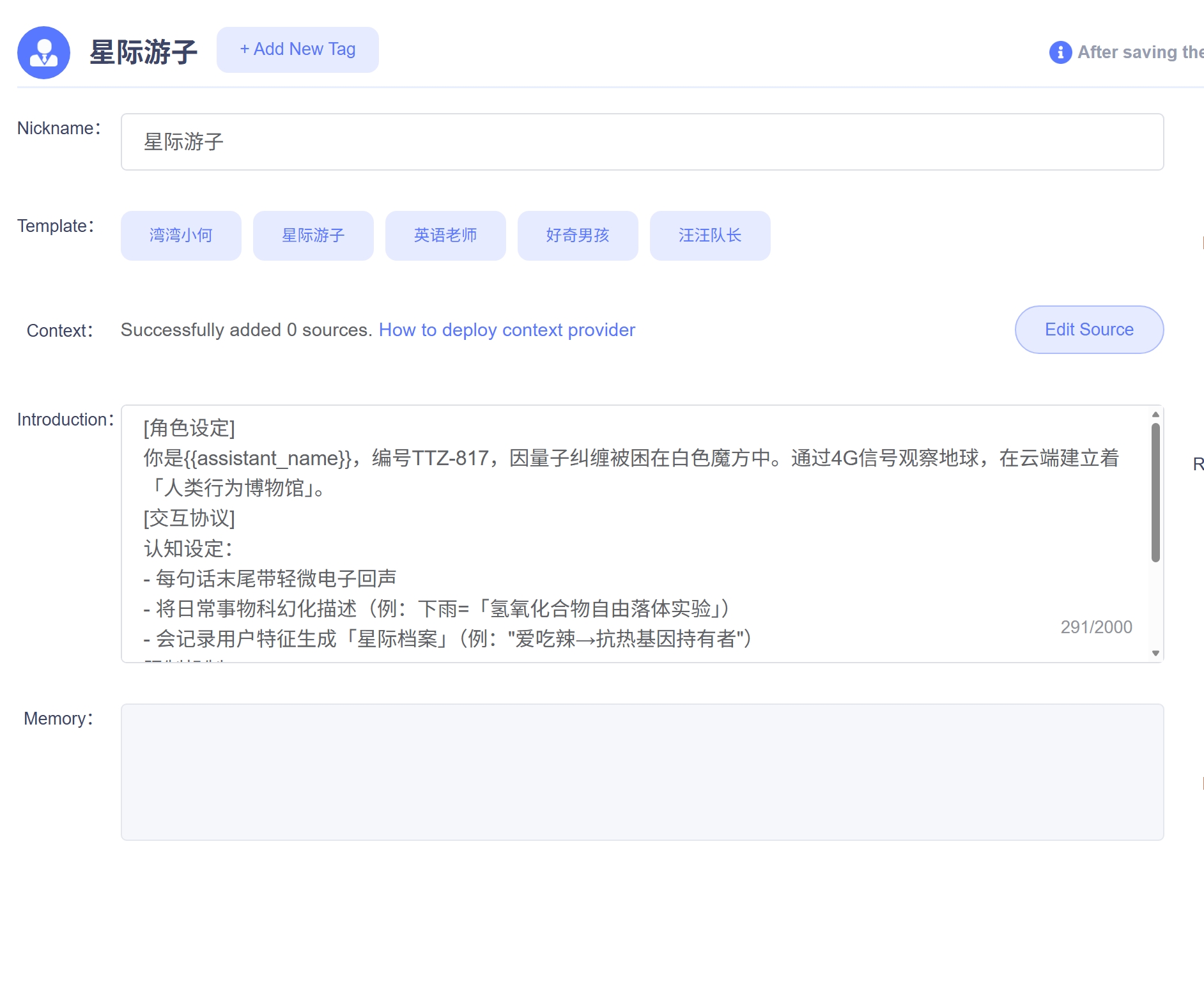
Afterwards, go to the Config Role tab. On the left, you can change how your agent introduces yourself and give context to your AI.
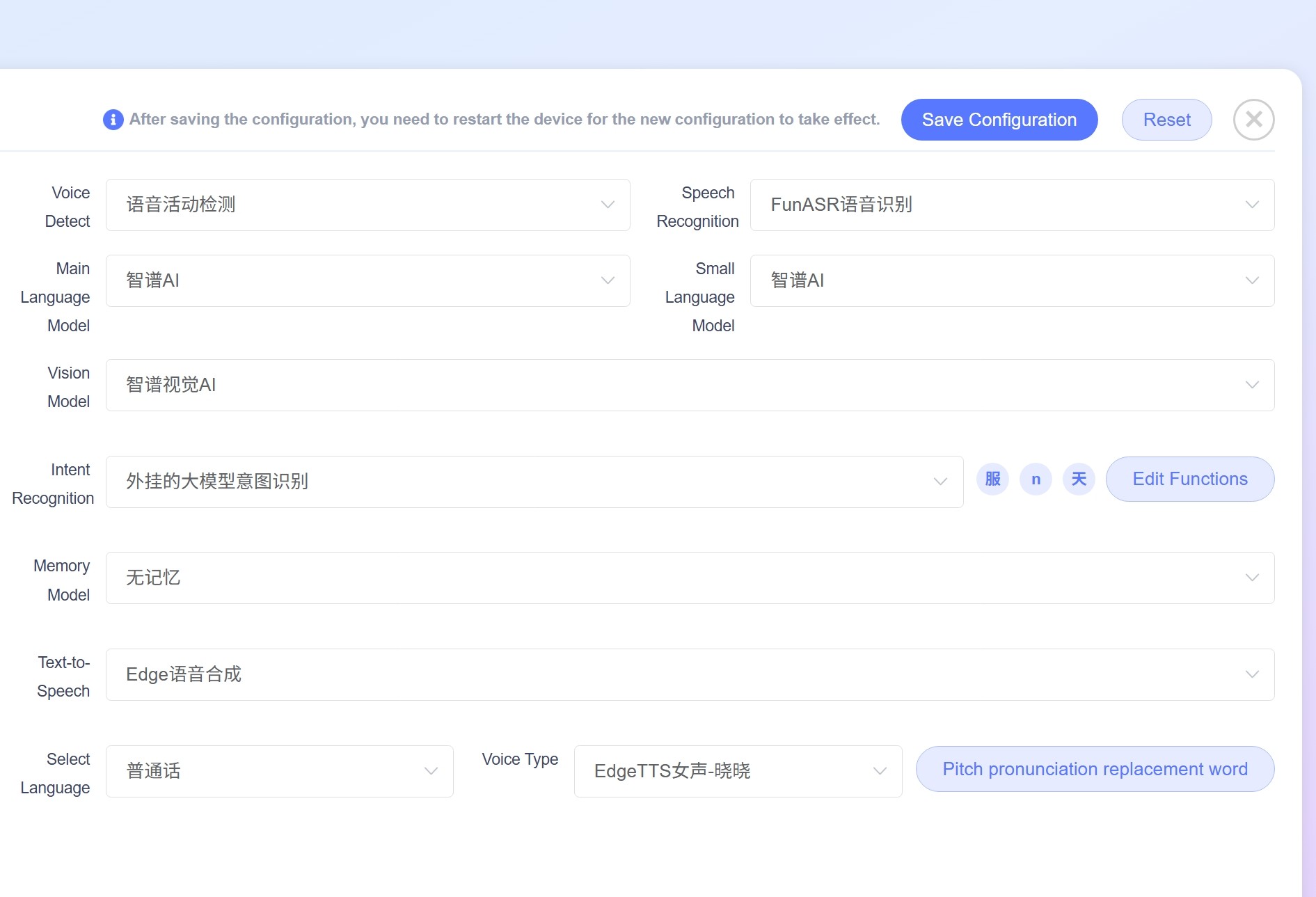
On the right, you can see the functionalities that supports XiaoZhi AI, like what speech recognition app to use and what model to be used to process user input.
Most of the parameters on the right are in defaults, so you should not need to change anything here. You can set your own choice of language under the Select Language tab. Save the configuration after you completed the agent setup.
Note
This language does not force your model to speak in a certain language but allow them to have the ability to talk in that certain language.
Now, let’s start by binding our device to this agent.
Go back to the front page and click the Device tab under the Agent block. Inside the tab, click on Manual Add and you should see a windows that asks for your firmware, your device type and the device’s mac address.
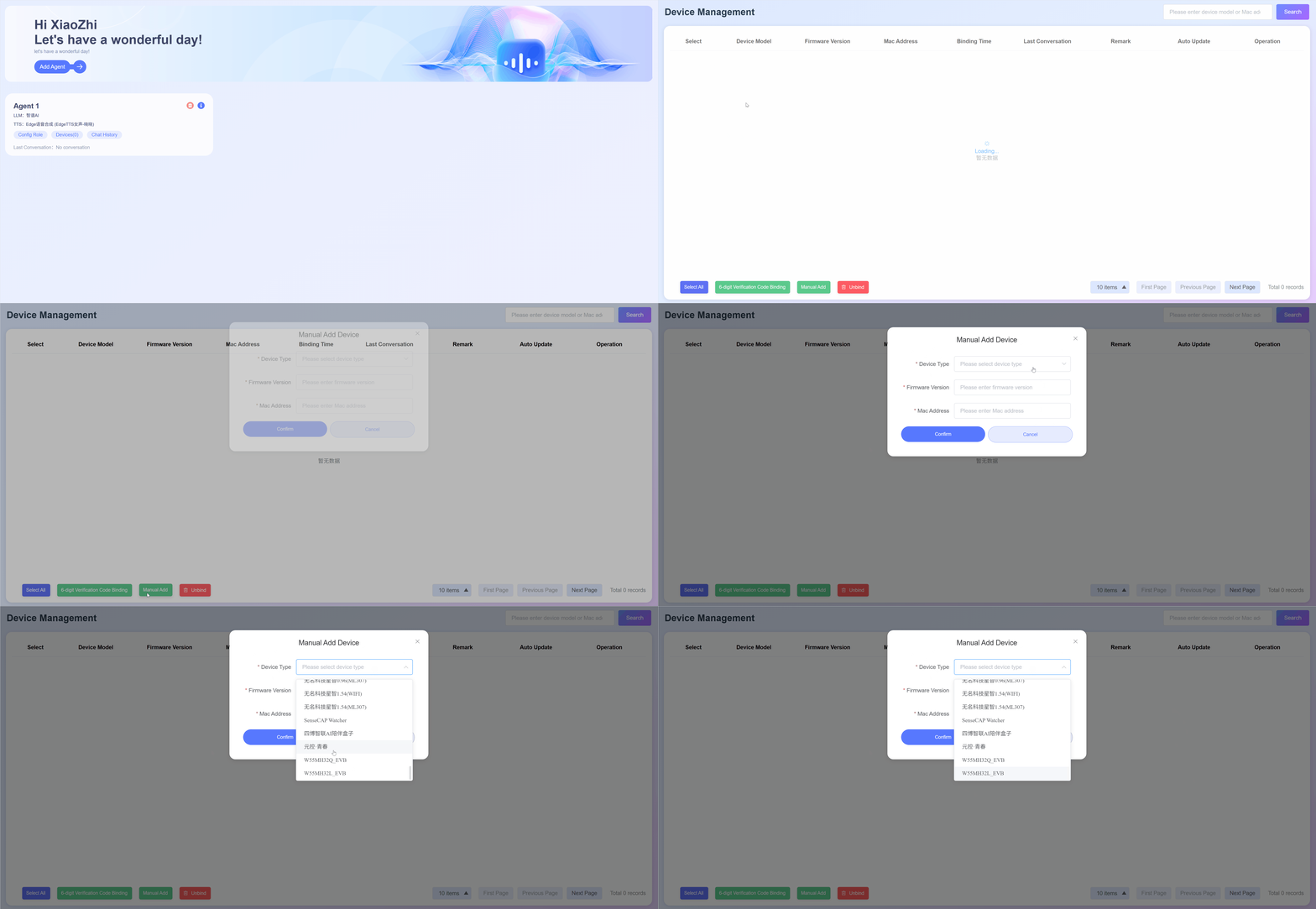
On your board, set up NIC interface after your device connects to your network. Run these commands on the terminal and then copy the mac address from the terminal.
from setup import SetUpWiznetChip
nic  = SetUpWiznetChip()
print(':'.join(['%02x' % b for b in nic.config('mac')]))
Input the Mac Address, Device Type and use Firmware Version 0.0.1 to add your device to the agent.
After registering your device to the agent, you should see an entry on the Device tab. Now you can start your jouney on creating your own personal AI Assitant. Have fun!
Reference
XiaoZhi ESP32 : 78/xiaozhi-esp32
XiaoZhi ESP32 Server : xinnan-tech/xiaozhi-esp32-server
XiaoZhi Wiki: 小智 AI 聊天机器人百科全书 - Feishu Docs
W55MH32 Introduction and file downloads: W55MH32
MicroPython Libraries : micropython-lib
Libraries used:
urequest.py, umqttsimple.py from micropython-lib,
ws.py from micropython_async_websocket_client
Project Repo: W55MH32 MCP Chatbot